

OpenClaw gives you two main interfaces: a web dashboard accessible via browser and a terminal UI (TUI) that runs directly in your shell. If you work over SSH, manage headless servers, or simply prefer the keyboard to the mouse, the TUI is probably what you need.
In this guide I'll show you how to launch the OpenClaw terminal interface, when it makes sense to use it instead of the web UI, and the concrete advantages of each option.
Why Choose the Terminal UI
Most OpenClaw users stick with the web dashboard - it's convenient, visual, easy to navigate. But there are situations where the terminal UI is significantly more practical:
SSH remote sessions: If you run OpenClaw on a VPS or Raspberry Pi and connect via SSH, opening a browser to access the dashboard is awkward. The TUI lets you interact with the agent directly in the SSH session, no port forwarding or tunnels needed.
Headless servers: Machines without a display or graphical environment (Linux servers, Docker containers, minimal installations) have no browser. The terminal UI works anywhere there's a shell.
Resource-constrained environments: The web dashboard loads JavaScript, CSS, various assets. The TUI is lightweight - no rendering, just text. On devices with limited RAM or CPU (ESP32, old laptops, embedded installations) it makes a difference.
Pure keyboard workflow: If you're someone who keeps hands on the keyboard and hates reaching for the mouse, the TUI integrates perfectly with tmux, screen, vim and the entire terminal ecosystem.
Scripting and automation: The TUI can be called from bash scripts, integrated into pipelines, launched automatically on server startup. The web UI requires manually opening a browser.
It's not about better or worse - they're different tools for different contexts. I use the web UI when working locally on the Mac Mini and want to see long conversations with smooth scrolling. I switch to the TUI when I SSH in for quick checks or when I need to call commands from cron scripts.
Need help with AI integration?
Get in touch for a consultation on implementing AI tools in your business.
How to Launch the Terminal UI
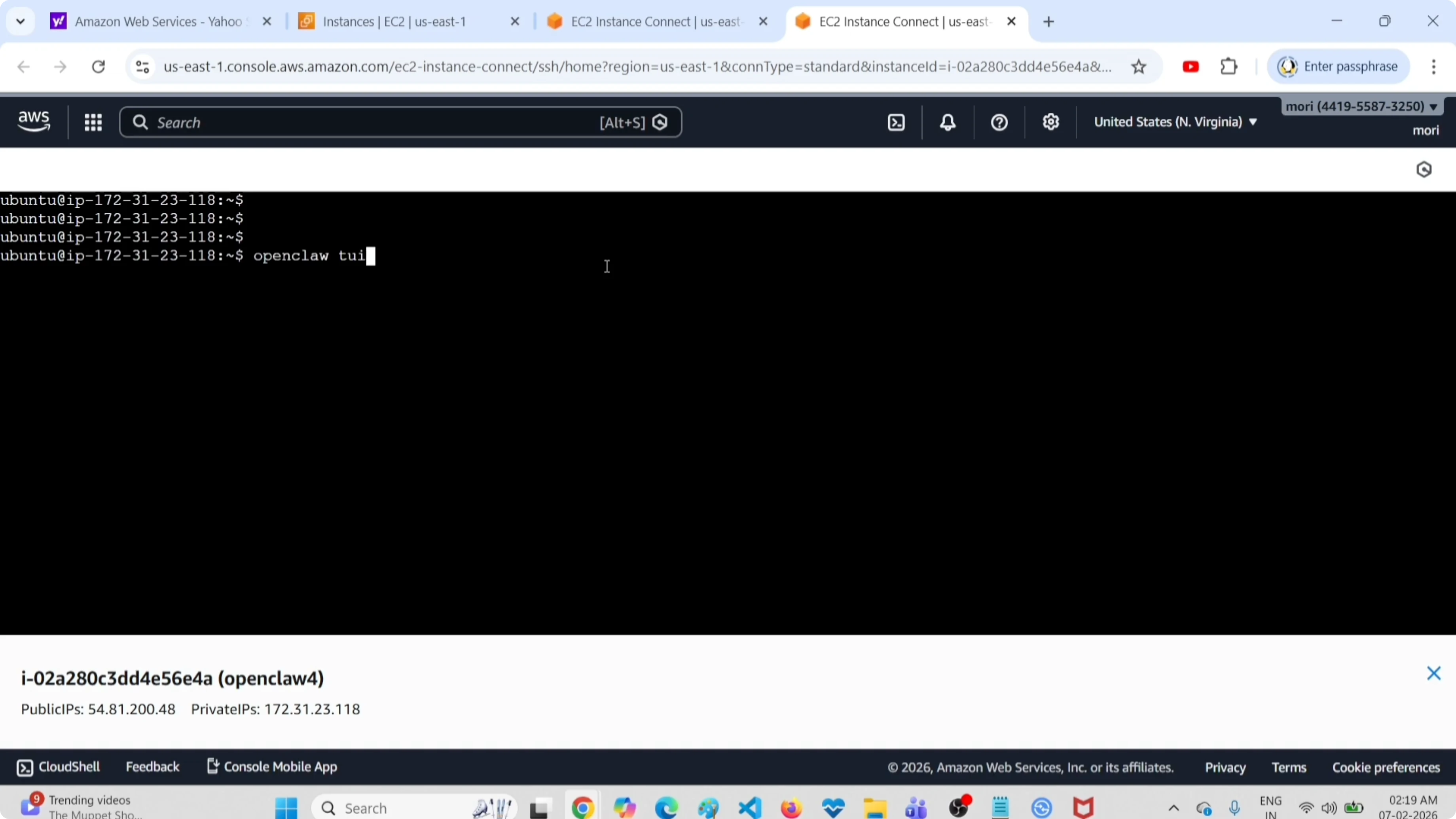
The command is simple:
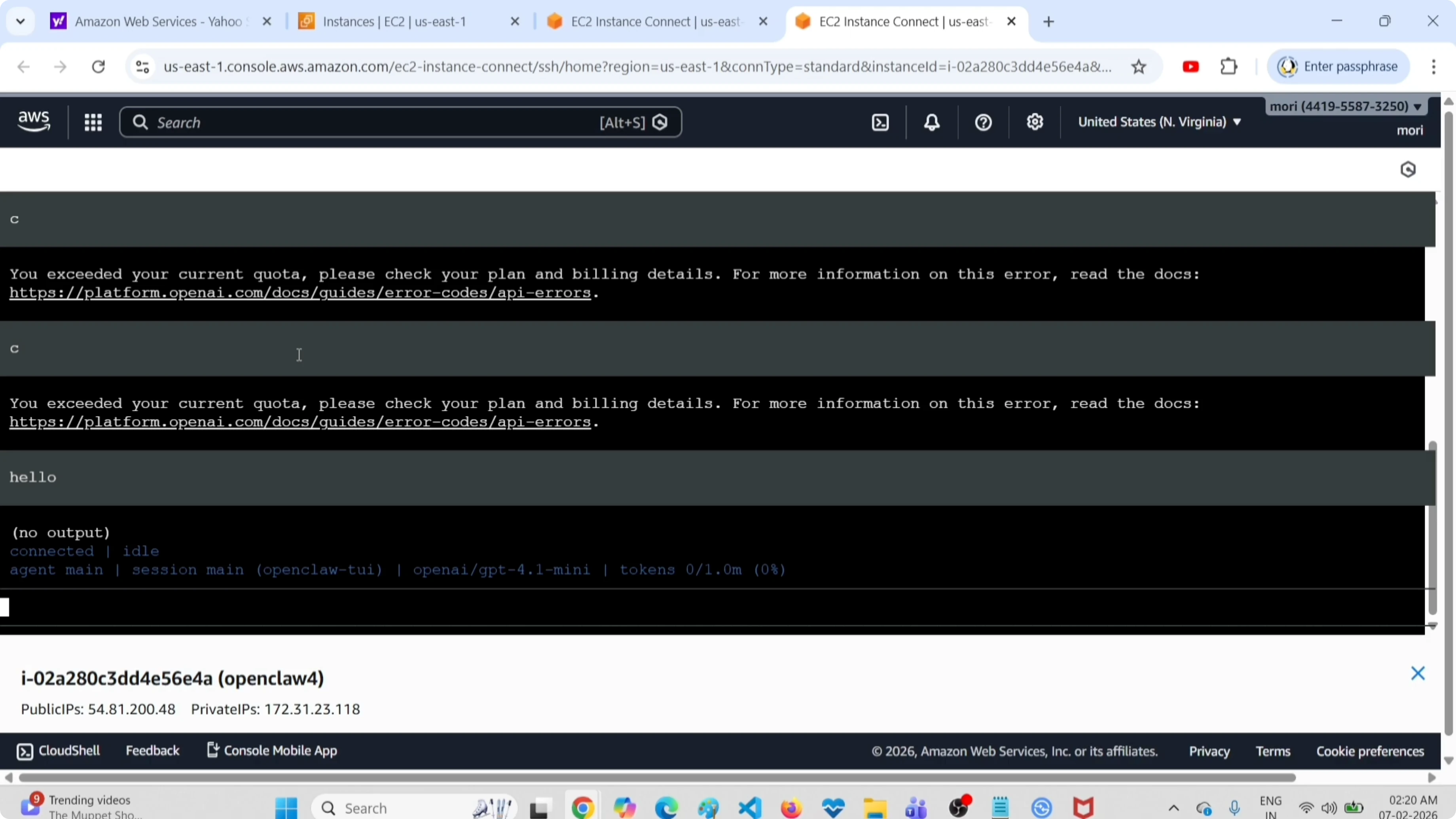
openclaw tuiOpen it in your preferred terminal. OpenClaw will load the text interface and after a few seconds you'll see the prompt ready to receive messages.
First run: If you've never configured OpenClaw before, you'll be asked to complete onboarding (model selection, API provider configuration, optional Telegram pairing). You can do everything from the TUI - the web UI isn't required.
Gateway already running: If the OpenClaw gateway is already active (launched in the background or via systemd), the TUI connects immediately. If the gateway isn't running, OpenClaw starts it automatically.
Using the Terminal UI
Once inside, usage is intuitive:
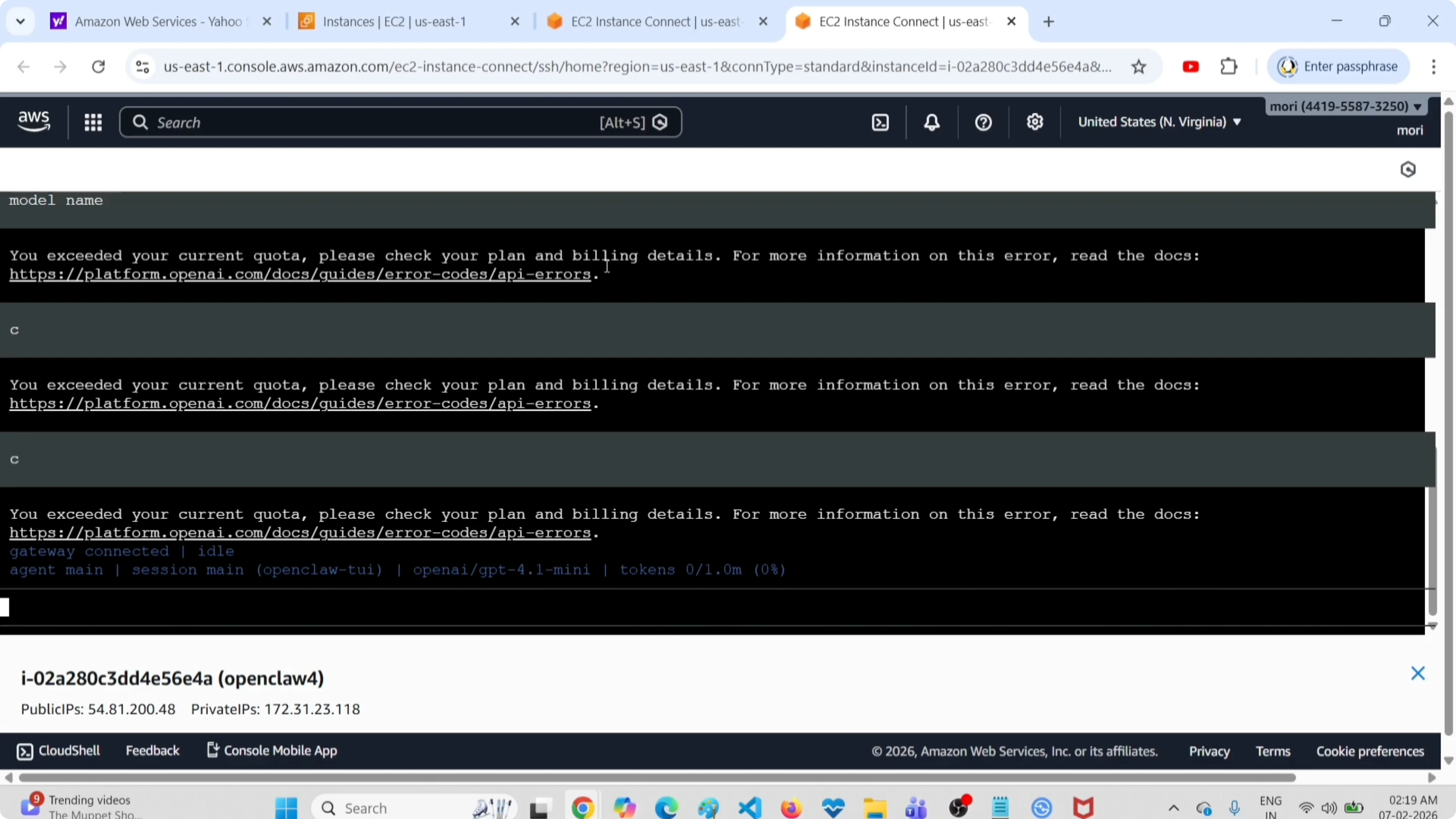
Writing messages: Type your prompt directly in the input field and press Enter to send. The agent processes the message and responds in the terminal.
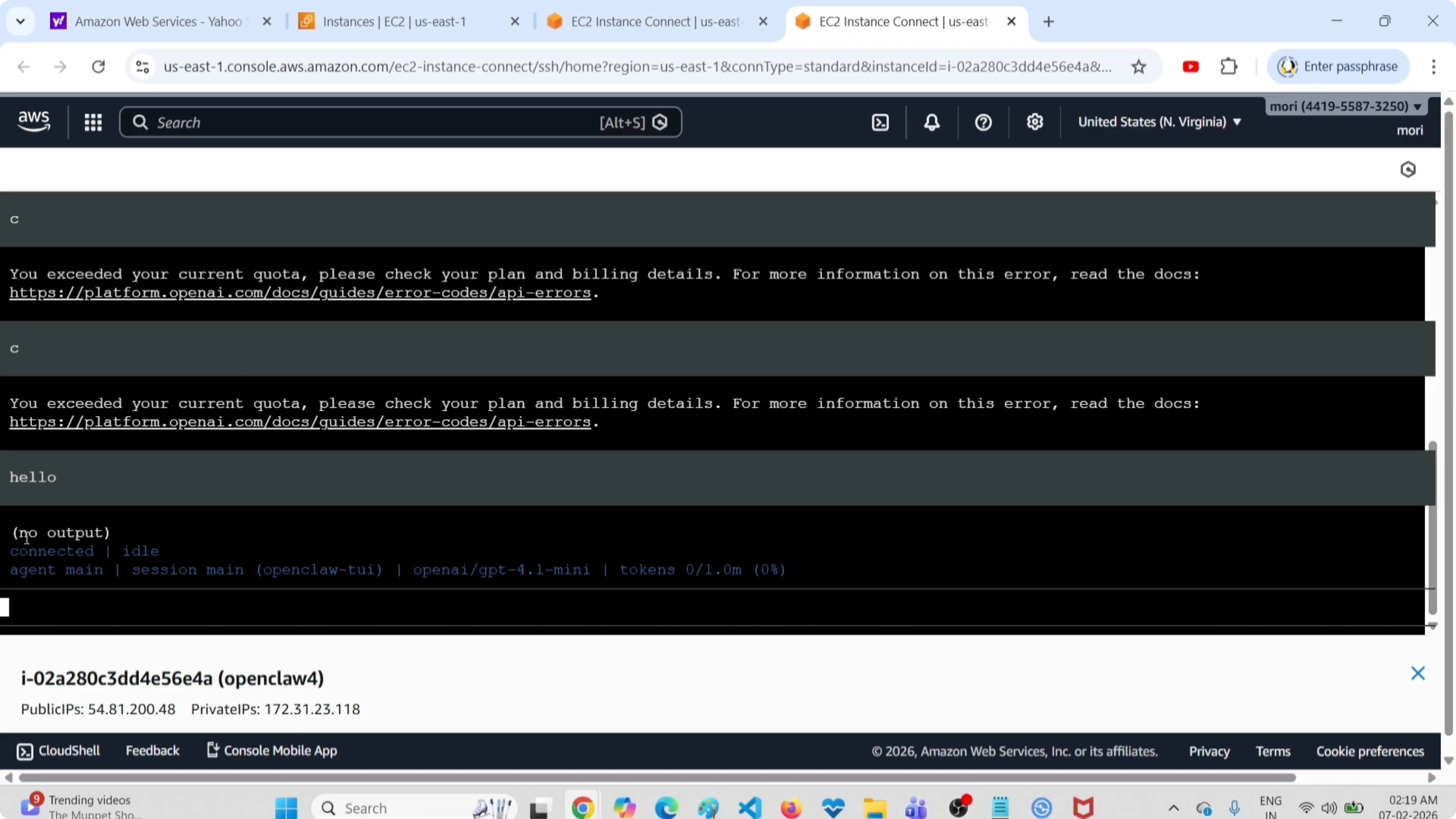
No visible output: Sometimes it seems like nothing happens after pressing Enter. This is normal - OpenClaw might be processing in the background or waiting for the LLM model. If the prompt is complex or the remote model is slow, it takes seconds. Wait.
Multi-turn conversations: The TUI maintains context. You can ask follow-up questions, ask the agent to modify previous responses, continue a conversation like you would in chat.
Long responses: Responses are printed to screen as they arrive (streaming). If they're very long, they scroll out of view. Use terminal scrollback (Shift+PgUp/PgDown on Linux, Cmd+arrow on macOS with Terminal.app) to scroll up.
Explore my AI projects
Check out the projects I'm working on and the technologies I use for automation and artificial intelligence.
Exiting the Terminal UI
To close the TUI and return to the shell, press:
Ctrl+C
This terminates the process and brings you back to the bash/zsh prompt. The OpenClaw gateway continues running in the background - you've only closed the interface. If you want to stop the gateway too:
openclaw gateway stopIf you want to re-enter the TUI later, simply relaunch openclaw tui.
Web UI vs Terminal UI: Practical Comparison
Here's when to use one interface or the other, based on my daily experience:
| Criterion | Web UI | Terminal UI |
|---|---|---|
| Remote access (SSH) | Awkward, needs port forwarding or tunnel | Perfect, works natively |
| Headless servers | Impossible without browser | Always works |
| Resource consumption | Moderate (browser + rendering) | Minimal (text only) |
| Long conversation display | Excellent, smooth scroll, syntax highlighting | Basic, scrolls off screen |
| Keyboard workflow | Requires mouse for navigation | 100% keyboard |
| Scripting integration | Difficult | Easy, callable from bash |
| Images and media | Inline display | Text paths/links only |
| Initial onboarding | More user-friendly | Requires terminal familiarity |
| Debugging and logs | Convenient for structured messages | Great with openclaw --verbose |
My setup: I use the web UI as the main interface when working locally. When I SSH into the Mac Mini for quick checks or deployments, I use the TUI. For cron automations (daily reports, monitoring scripts), always TUI.
Want to automate with AI?
I help implement AI agents and automated workflows for your business.
Real-World Use Cases for the Terminal UI
1. Managing agents on VPS
I have OpenClaw installed on a Hostinger VPS for some agents that run 24/7. I SSH in for monitoring and configuration. The TUI lets me test prompts, check responses, verify that agents are responding correctly - all without exposing the web dashboard to the Internet or configuring reverse proxies.
2. Quick debugging
When an agent behaves strangely, I launch openclaw tui --verbose from SSH. The TUI shows detailed logs in real-time while I send messages. I see exactly what passes between user input, LLM, and tool calls. For quick debugging, it's faster than the dashboard.
3. Automated cron scripts
I have bash scripts that run every morning to generate reports and send them via Telegram. The scripts call openclaw tui (in non-interactive mode via pipe) to process data and generate text. The web UI wouldn't be scriptable this easily.
4. Raspberry Pi installations
On Raspberry Pi 4 with 4GB RAM, every MB counts. I run OpenClaw with local Ollama models (Qwen, Phi-4). The web dashboard loads heavy JavaScript assets. The TUI leaves more RAM available for the model.
5. Tmux workflows
I use tmux to manage multiple sessions. In one window I have Neovim for writing code, in another the OpenClaw TUI for asking explanations or generating snippets. I stay in the terminal, switch between windows with keybindings, zero context switch.
Alternatives: Telegram and Other Clients
The terminal UI isn't the only alternative to the web dashboard. OpenClaw supports:
Telegram bot: If you've configured Clawdbot (OpenClaw's Telegram bot), you can interact with the agent directly from Telegram. Convenient for quick checks from your phone or when you don't have server access. Read the complete guide on configuring OpenClaw with Telegram for setup.
Discord, Signal, Slack: OpenClaw integrates with various messaging clients. You can chat with the agent without ever opening browser or terminal.
Direct API: If you're building custom applications, you can call the OpenClaw HTTP API directly. No interface needed - POST to the gateway and receive JSON.
The choice depends on context. For server management and scripting, the TUI is unbeatable. For mobile use or team sharing, messaging bots are more practical.
Explore more OpenClaw tutorials
Discover how to install OpenClaw on Android, configure local models with Ollama, and automate workflows with multi-agent systems.
Conclusion
The OpenClaw terminal UI is a powerful tool for those who work in server environments, manage headless installations, or simply prefer working from the keyboard. It doesn't replace the web dashboard - it complements it.
Use the terminal UI when:
- Working via SSH on remote servers
- Managing headless or embedded installations
- Integrating OpenClaw into bash scripts
- Preferring pure keyboard workflows
- Having limited resources (RAM, CPU)
Use the web UI when:
- Working locally with graphical environment
- Viewing long conversations
- Preferring visual interfaces
- Doing initial onboarding or configuration
The command is simple: openclaw tui to launch, Ctrl+C to exit. Try it in your next SSH session - it's more convenient than you think.


