

When you modify OpenClaw configuration, add a model, or troubleshoot an issue, you need to restart the gateway. I've learned the best way is to keep a terminal open with live logs - so you immediately see if something goes wrong.
This is the procedure I use every time. It works on Ubuntu, but also applies to other Linux distributions, WSL2 on Windows, and Mac.
Environment
I work from the terminal on Ubuntu. The important thing is to keep two terminals open: one for live logs, one for commands.
This setup lets you see exactly what happens during the restart.
Follow Logs in Real Time
In the first terminal, start logs in follow mode:
openclaw logs --follow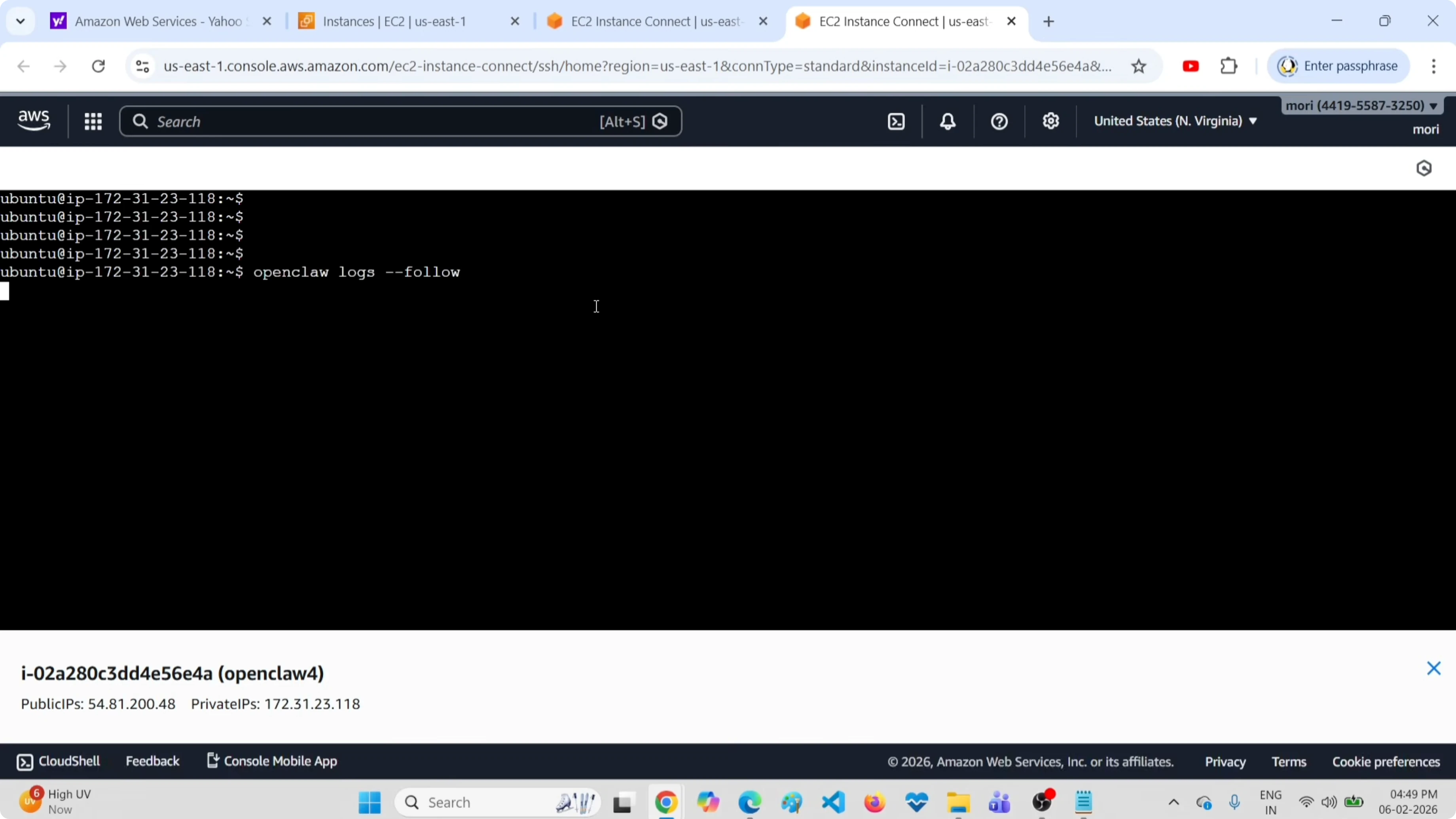
Logs start scrolling. Leave this terminal open - it will show you what happens when you restart the gateway.
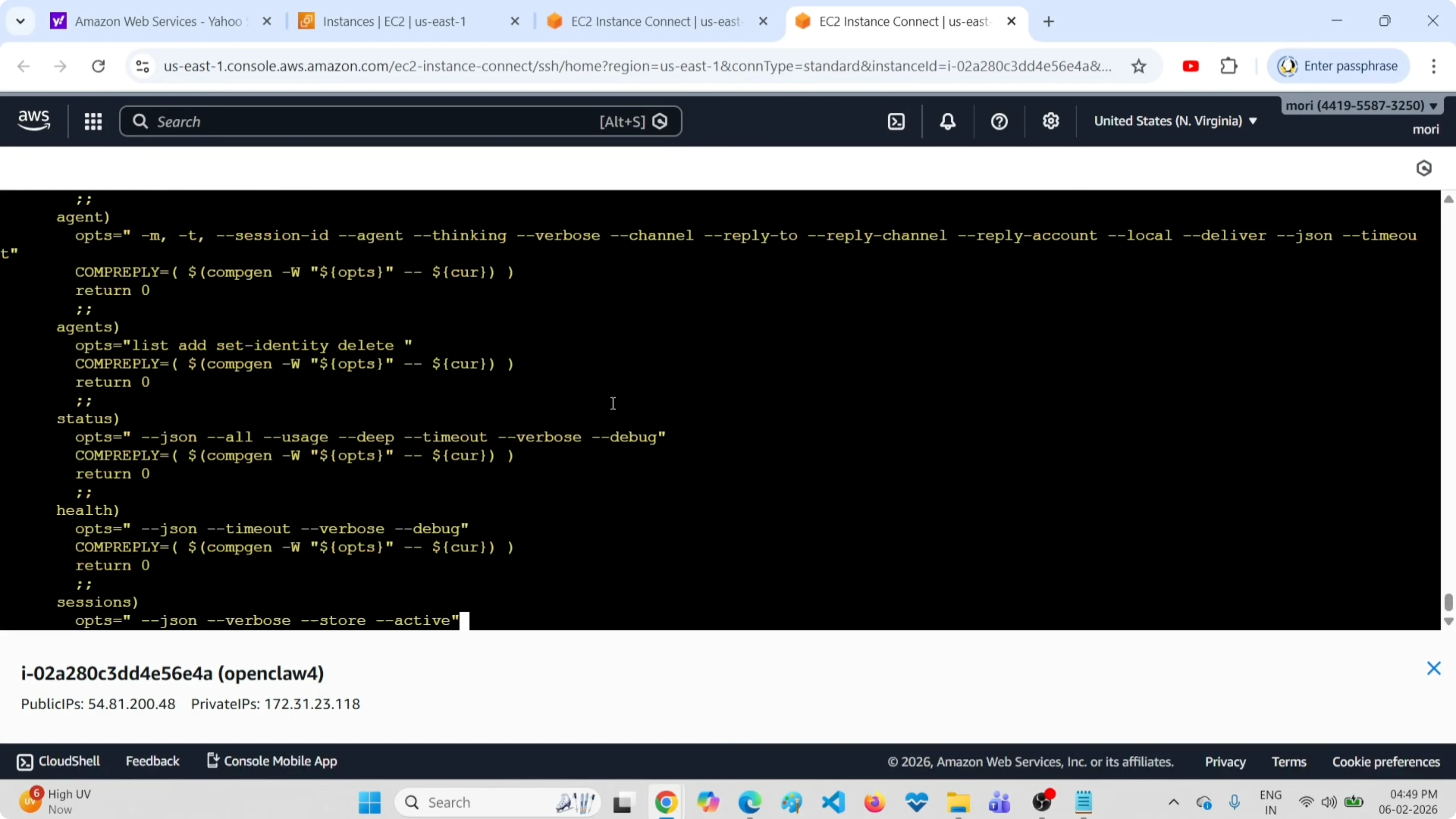
If you have connection problems or timeouts, this is where you'll see them first.
Restart the Gateway
Open a second terminal and run the restart command:
openclaw gateway restart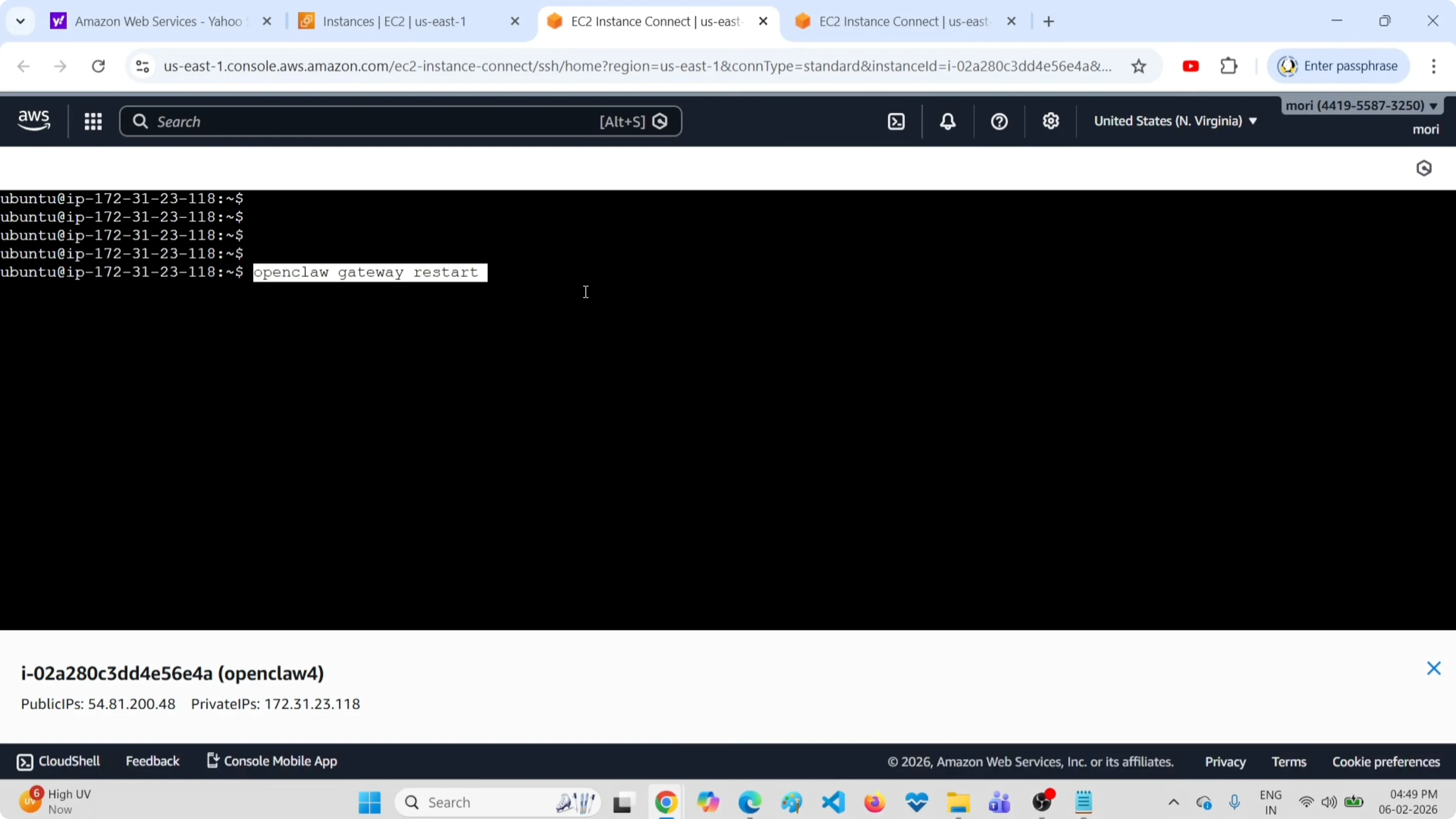
The command executes immediately. To see what happened, go back to the logs terminal.
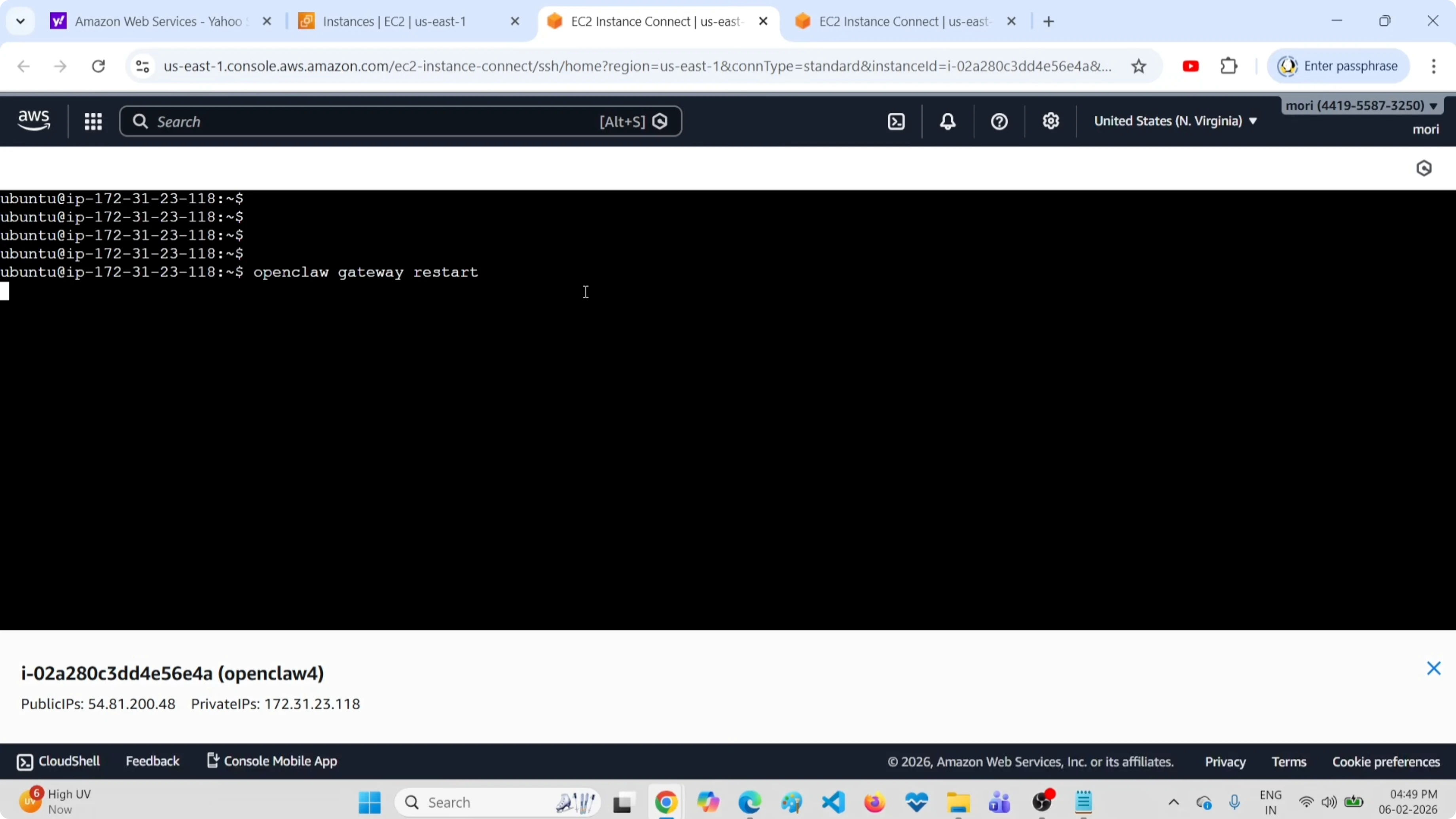
If you see Node.js stack traces in the logs, there's a configuration or dependency problem to resolve.
Need OpenClaw support?
Get in touch for consultation on installing and configuring OpenClaw for your project.
Manual Start and Stop
If you prefer manual control, you can stop the gateway:
openclaw gateway stopAnd then start it:
openclaw gateway startThese commands are useful when you want to make sure the process is completely terminated before restarting - for example, when changing complex configurations or debugging state issues.
Verify Gateway Status
After restarting, check that the gateway is active:
openclaw gateway status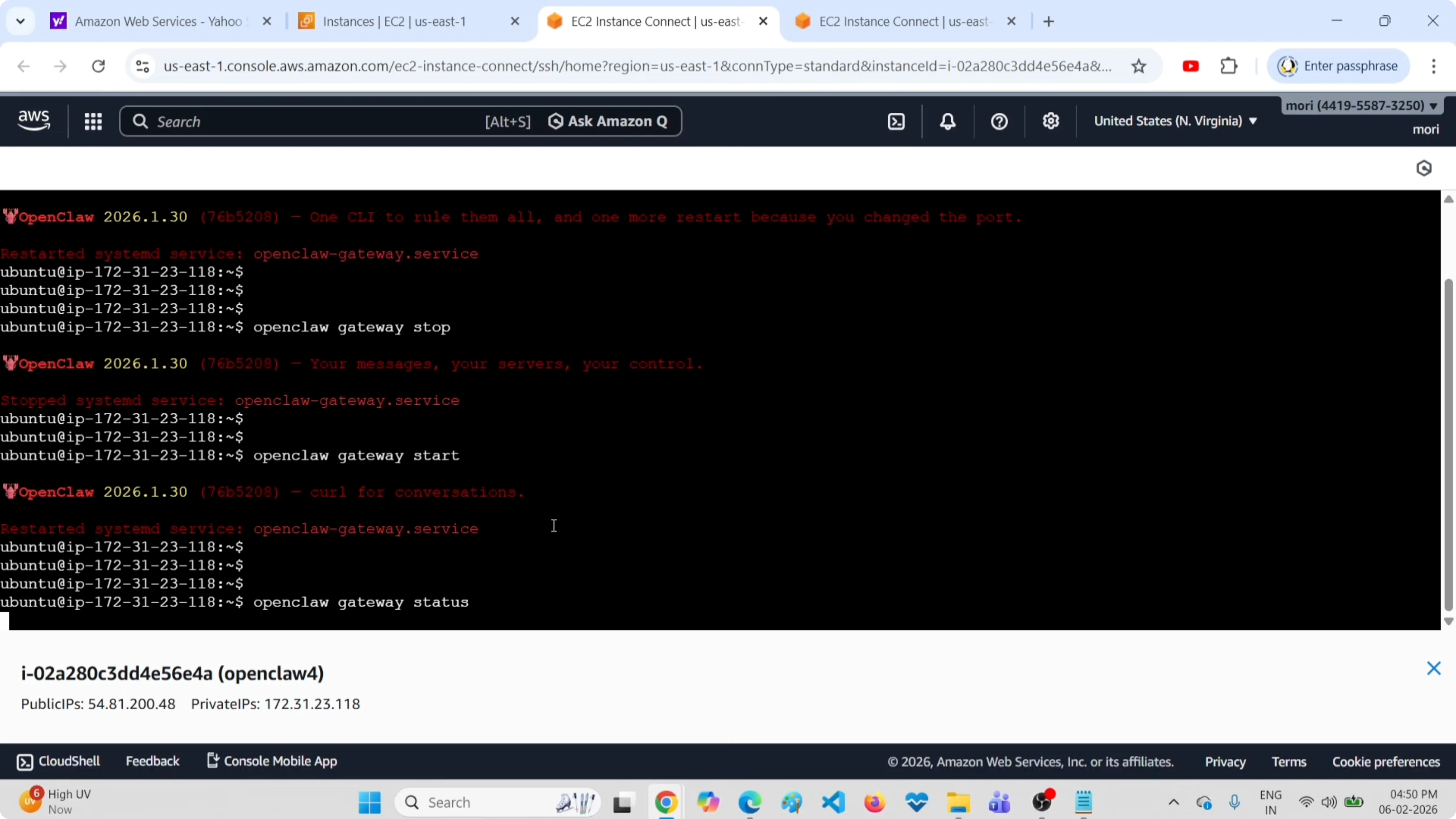
The output tells you if systemd has the service enabled and if the gateway is running.
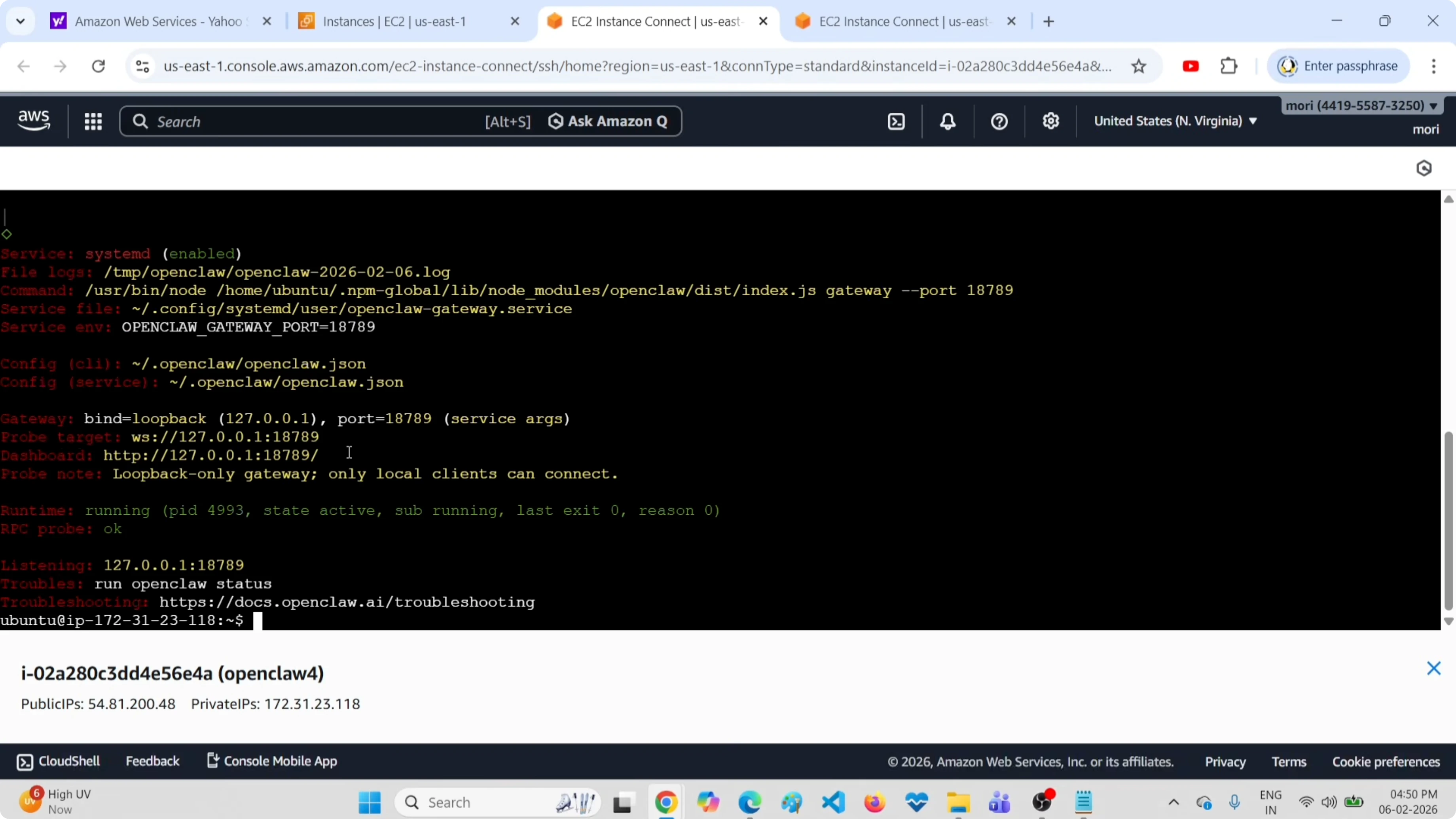
If you see "active (running)", everything is fine.
Complete System Status
There's a more complete command that shows everything:
openclaw status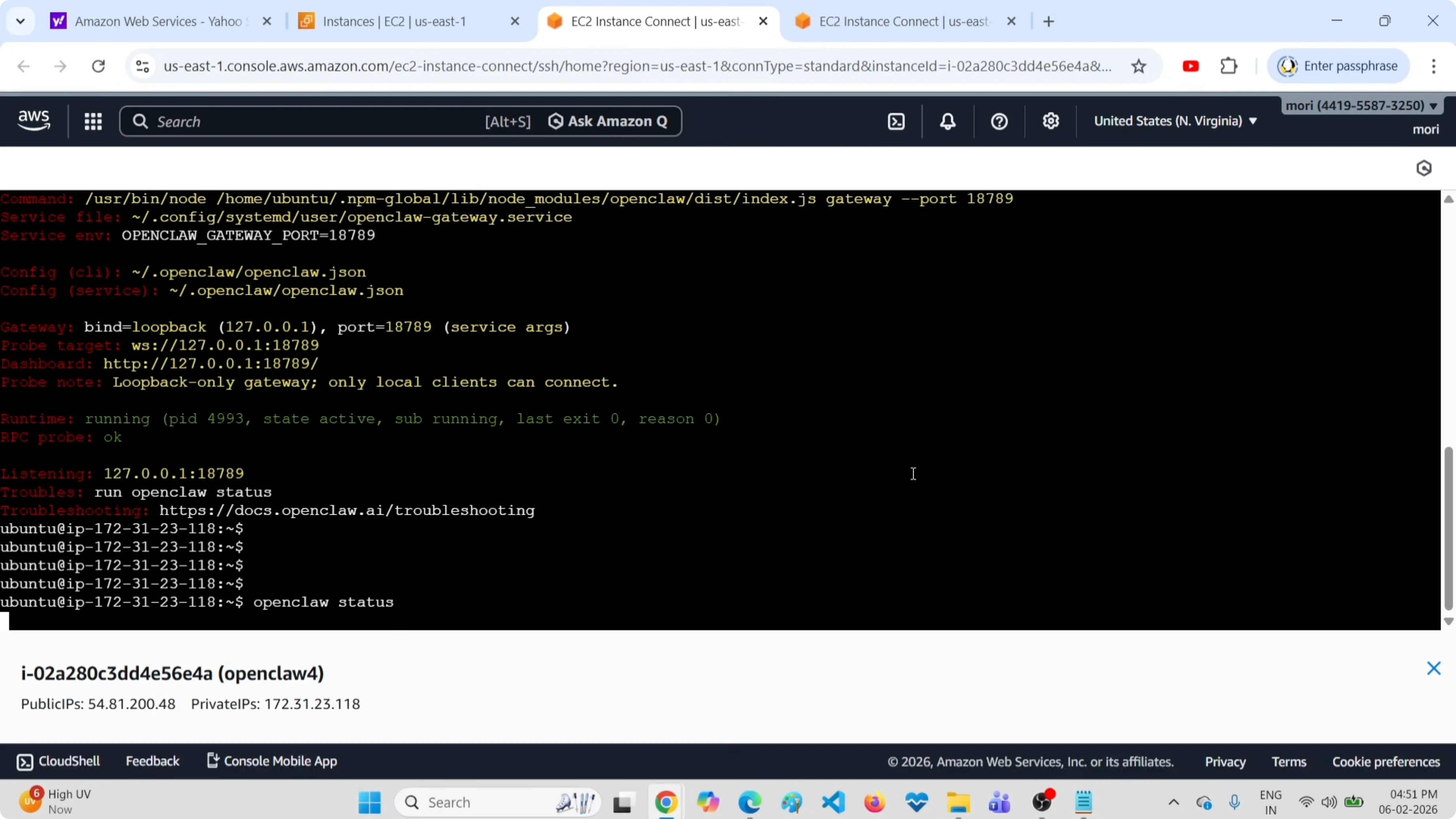
This output includes:
- Dashboard URL - where you access the web interface
- Installation path - where OpenClaw files are located
- Configured channels - Telegram, Discord, etc.
- Configured models - which AI models you're using
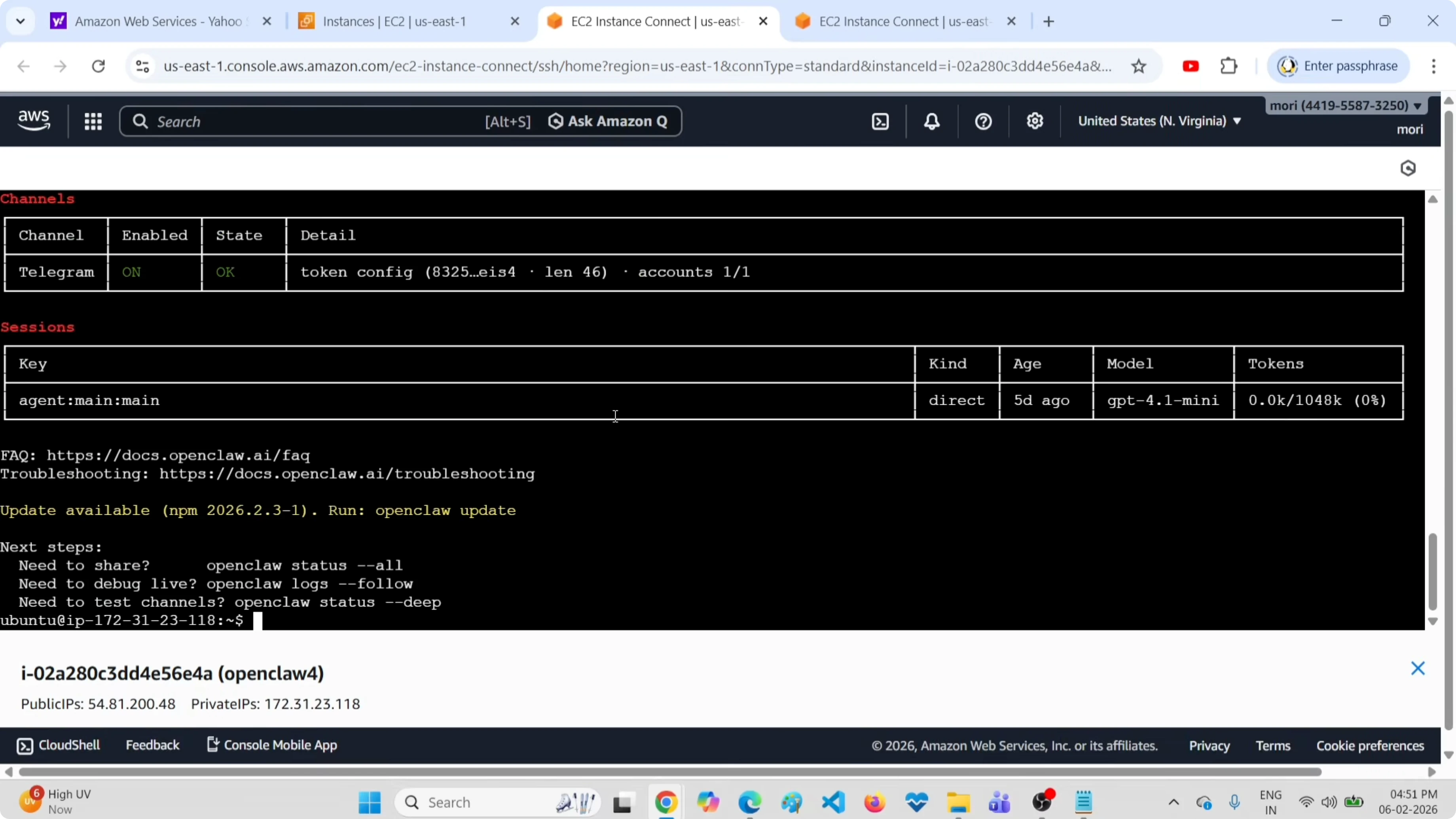
I use this command when I want a complete overview - especially after new installations or major changes.
Check out my AI projects
Take a look at what I am working on: automation, AI agents and developer tools.
Step-by-Step Procedure
Here's the complete sequence I always use:
1. Open the first terminal for logs:
openclaw logs --follow2. Open the second terminal for restart:
openclaw gateway restart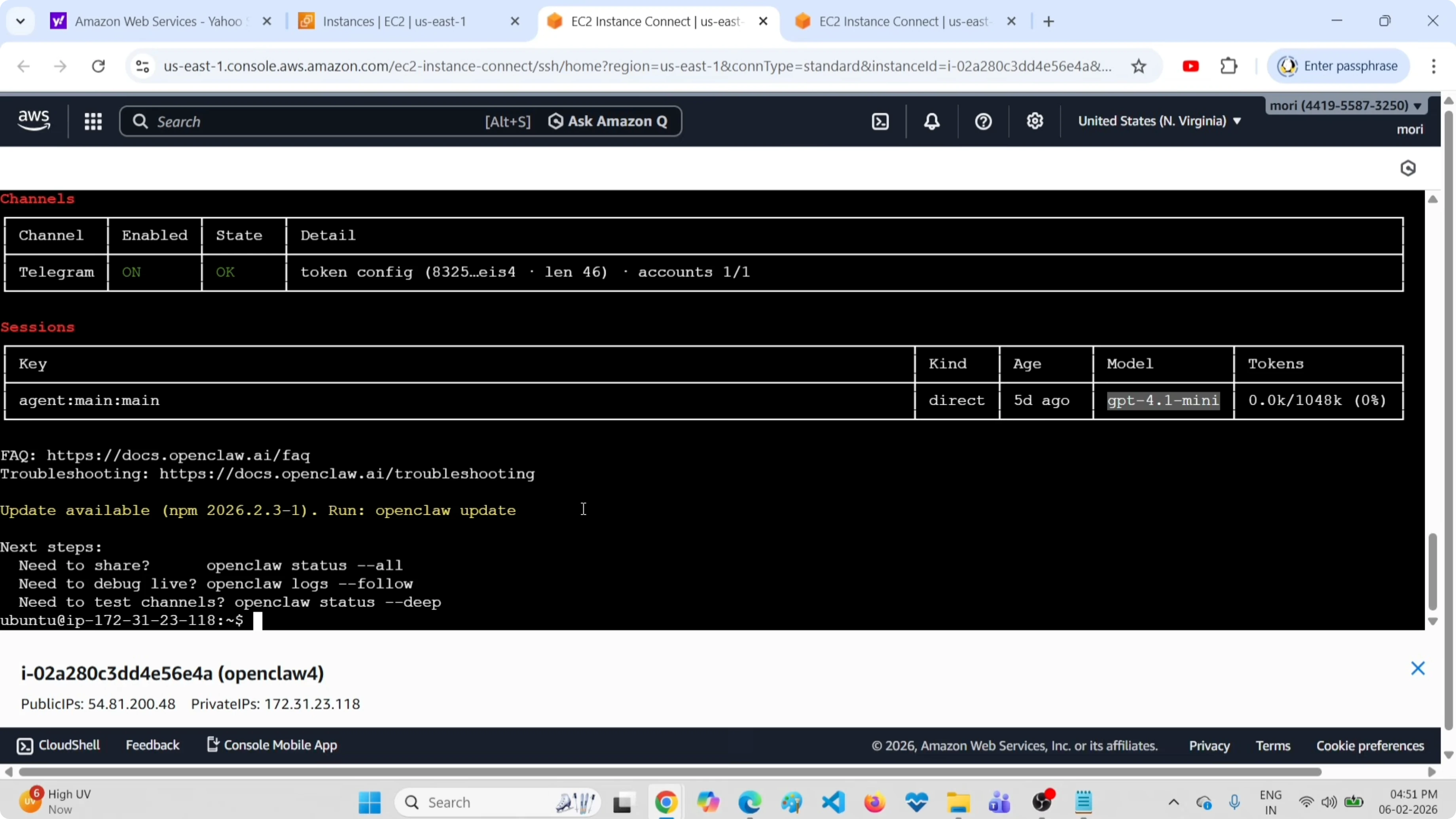
3. Go back to the logs terminal and confirm the restart succeeded.
4. Verify service status:
openclaw gateway status5. Check complete system status:
openclaw status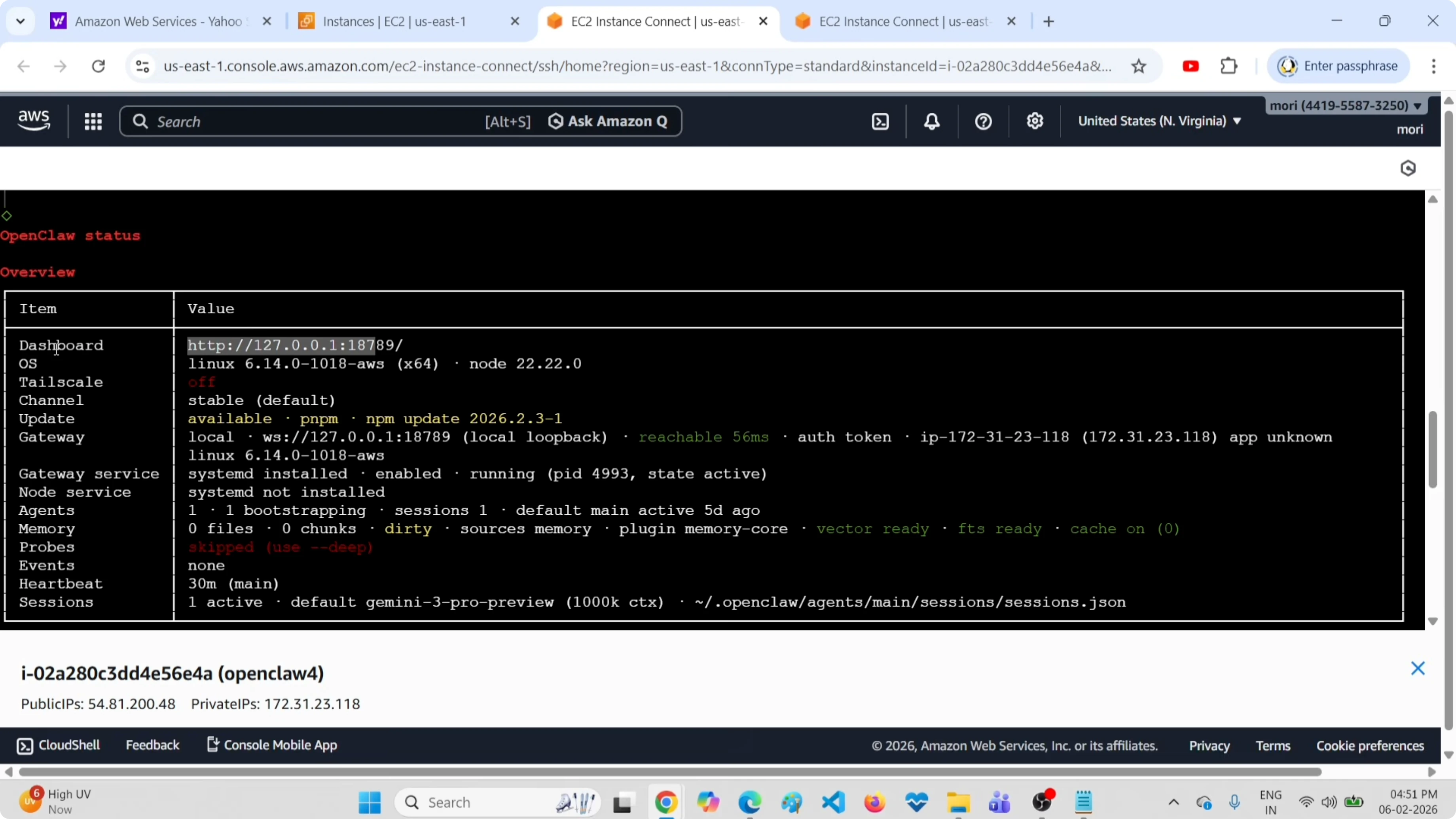
Command Summary
For quick reference, here are all useful commands:
View live logs:
openclaw logs --followRestart the gateway:
openclaw gateway restartStop the gateway:
openclaw gateway stopStart the gateway:
openclaw gateway startCheck gateway status:
openclaw gateway statusSee complete status (dashboard, channels, models):
openclaw statusTroubleshooting
The restart command doesn't respond?
Check that OpenClaw is actually installed. Try openclaw --version to confirm.
The gateway doesn't start after restart?
Look at the logs carefully. Often the problem is a wrong configuration in the ~/.openclaw/openclaw.json file - missing API key, invalid model, or wrong JSON syntax.
I see errors in logs but the gateway seems to work?
Some warnings are normal (rate limits, automatic retries). Real errors block startup or cause continuous crashes.
The dashboard isn't reachable after restart?
Verify that the gateway is active with openclaw gateway status. If it's active but the browser doesn't load, check firewall and ports. The dashboard URL is visible in openclaw status.
Final Thoughts
Using live logs during restart makes everything clearer. You see exactly when the gateway stops, when it restarts, if there are errors.
The gateway status and status commands are my daily debugging allies - the first for quick confirmations, the second for complete overviews.
I restart the gateway every time I modify models, add fallbacks, or change channel configurations. With this procedure, the whole thing takes just a few seconds.


