


OpenClaw is moving fast. The project is pre-1.0 and actively adding new features, bug fixes, and improvements almost daily. If you're using OpenClaw in production or even experimenting, you need to know how to update it properly.
This guide shows you how to upgrade and downgrade OpenClaw on Linux, Windows (via WSL2), and Mac, which channels to use (stable, beta, dev), and how to manage the gateway service after updates.
Fast Update on Linux (Recommended Method)
The safest and most reliable way to update OpenClaw is using the dedicated command:
openclaw updateThis command downloads the latest version, detects your existing installation, and upgrades in place. It updates both the core and the CLI, runs the doctor for health checks, and restarts services as needed.
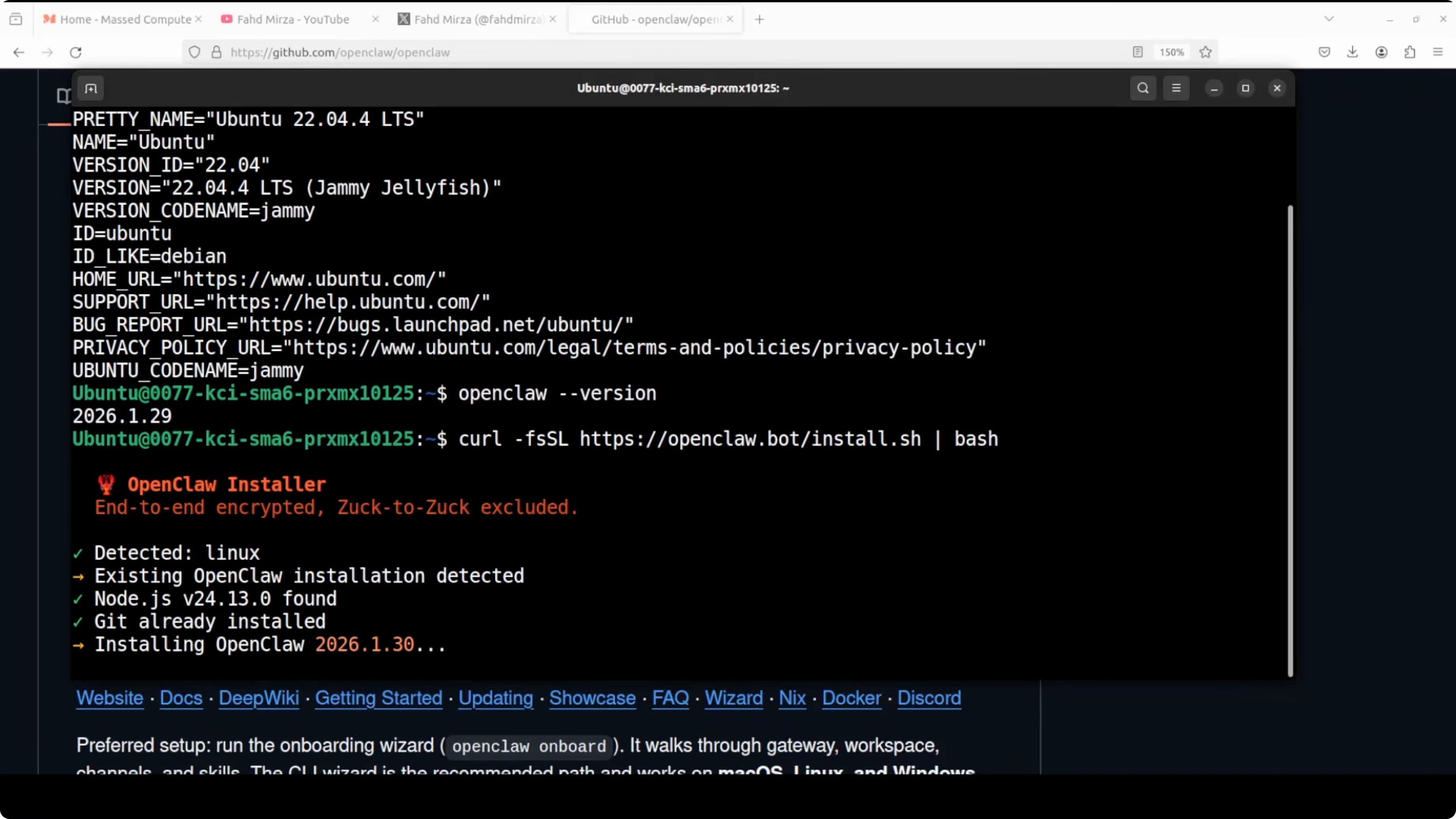
What happens during the update:
- Detects existing installation
- Downloads and installs the latest version
- Updates core and CLI
- Runs doctor for health and integrity checks
- Restarts services if necessary
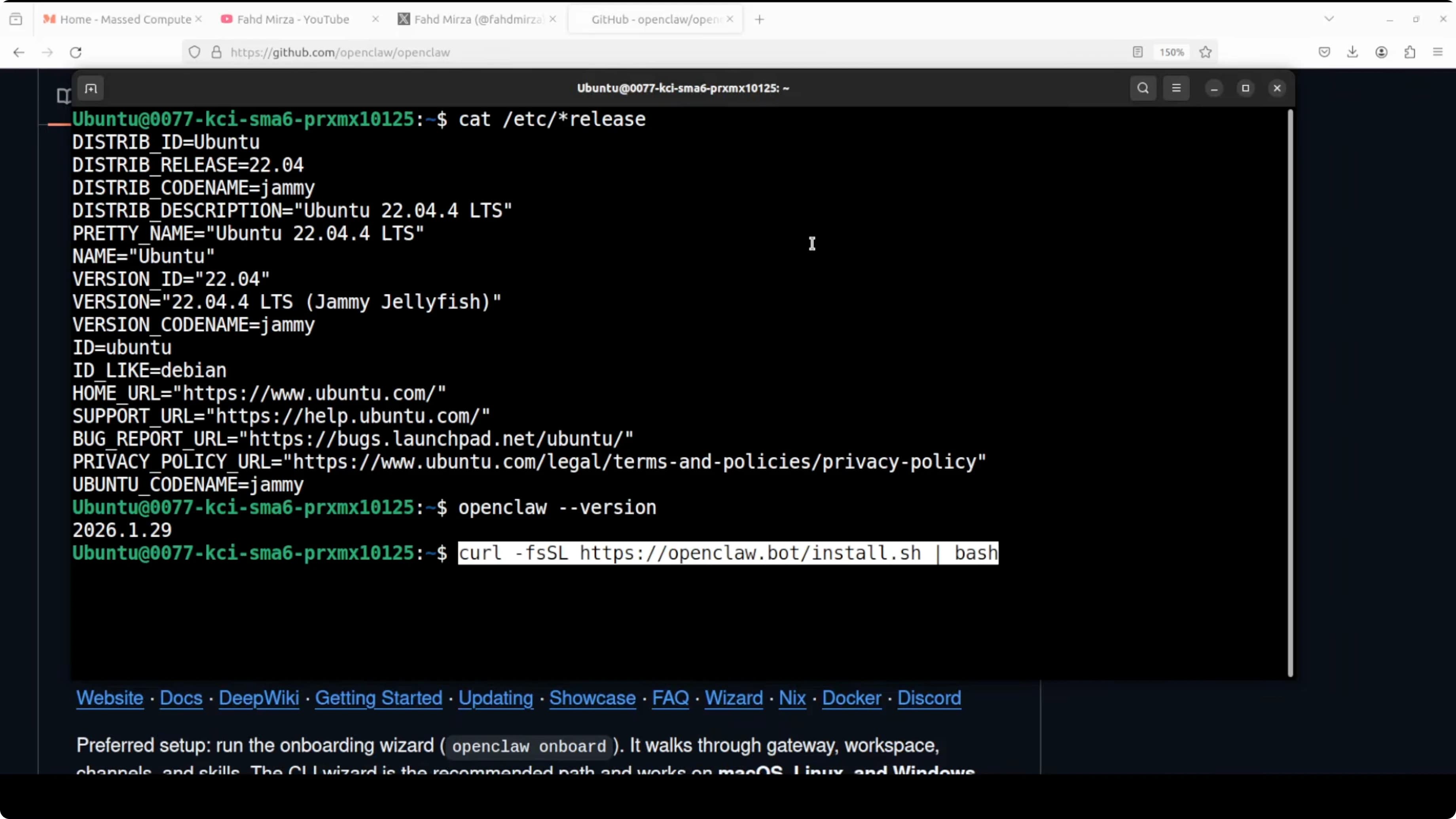
You'll see logs as it updates plugins and restarts services. If you haven't installed any extra plugins, that step will be skipped.
Interactive Prompts During Update
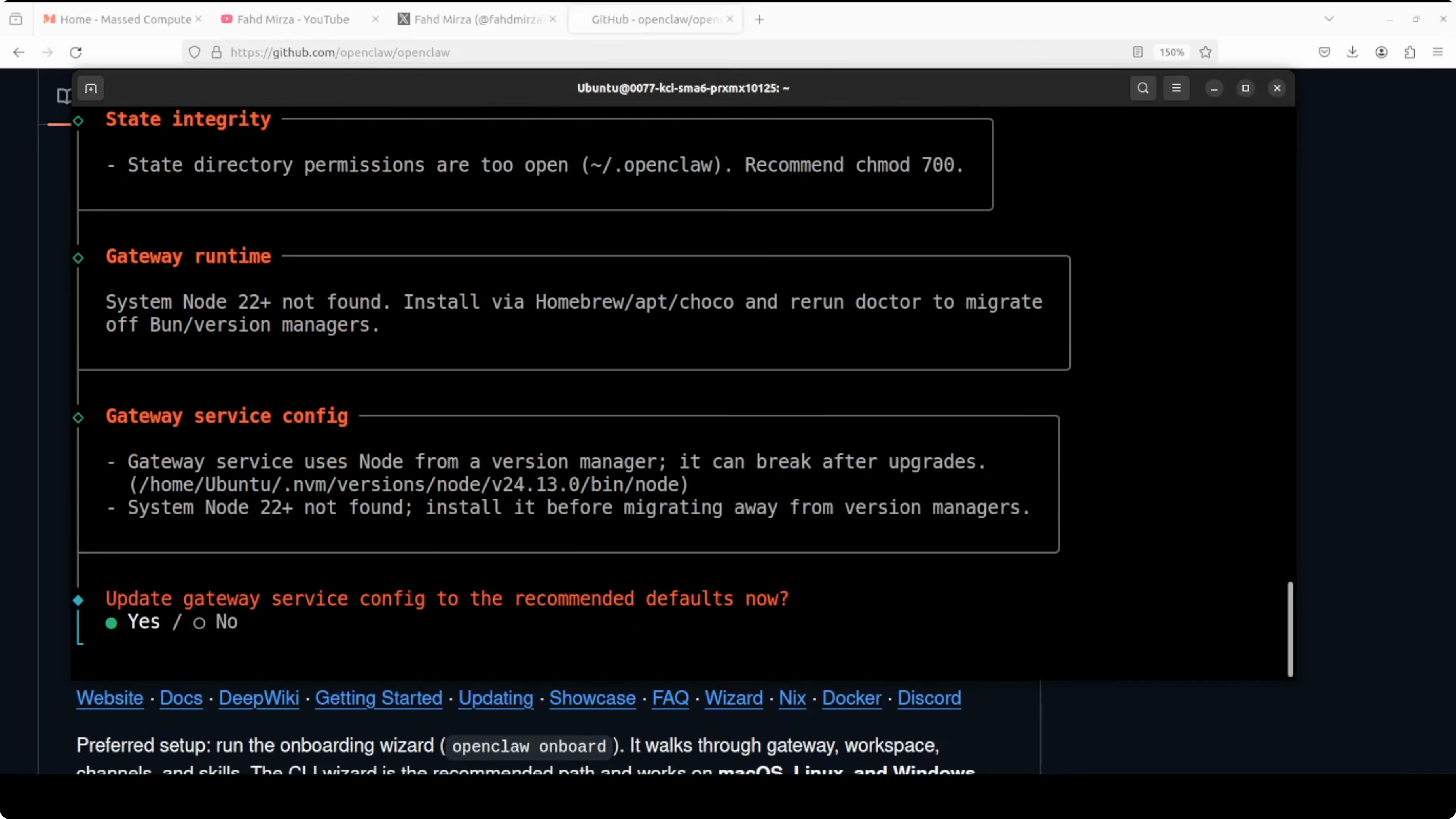
During the update you may encounter these prompts:
Tighten permissions to 700: if you're in production, I recommend choosing yes for security hardening.
Upgrade gateway service config: if you've integrated OpenClaw with Anthropic or OpenAI, select yes. If you installed with Ollama or LM Studio, you can skip and restart the service manually.
Need help with AI integration?
Get in touch for a consultation on implementing AI tools in your business.
Verification and Health Checks
The doctor handles config migrations, checks for deprecated settings, audits security configuration, and ensures that gateway services are properly configured.
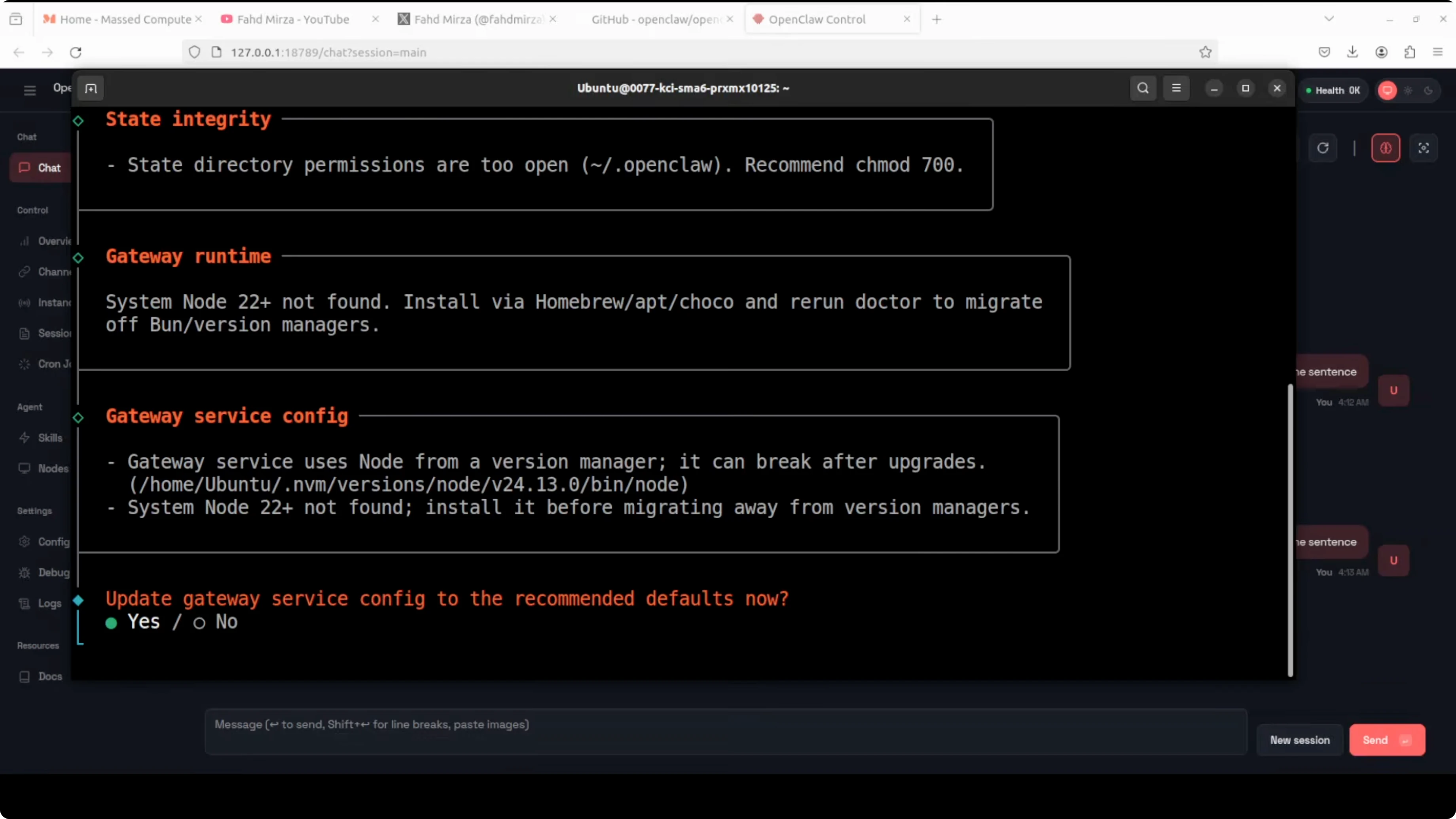
After any changes to the config file or OpenClaw itself, always restart the gateway service:
openclaw gateway restart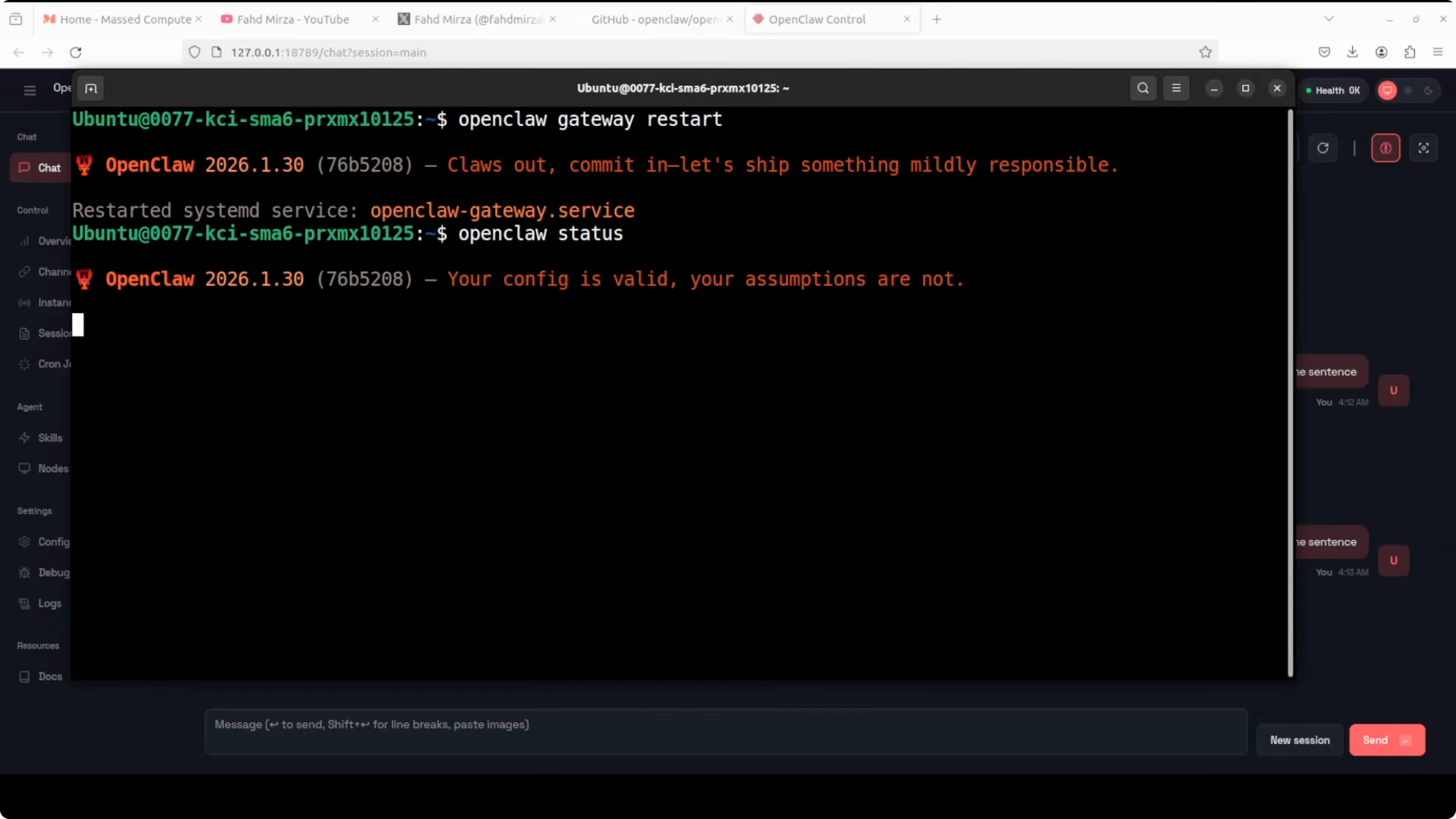
The openclaw status command shows all services. You can ignore warnings about group privileges where they're making the system more secure.
Updating OpenClaw on Windows (WSL2)
On Windows, use WSL2 and run the same commands inside the Linux environment. This is the best way to run and update OpenClaw on Windows.
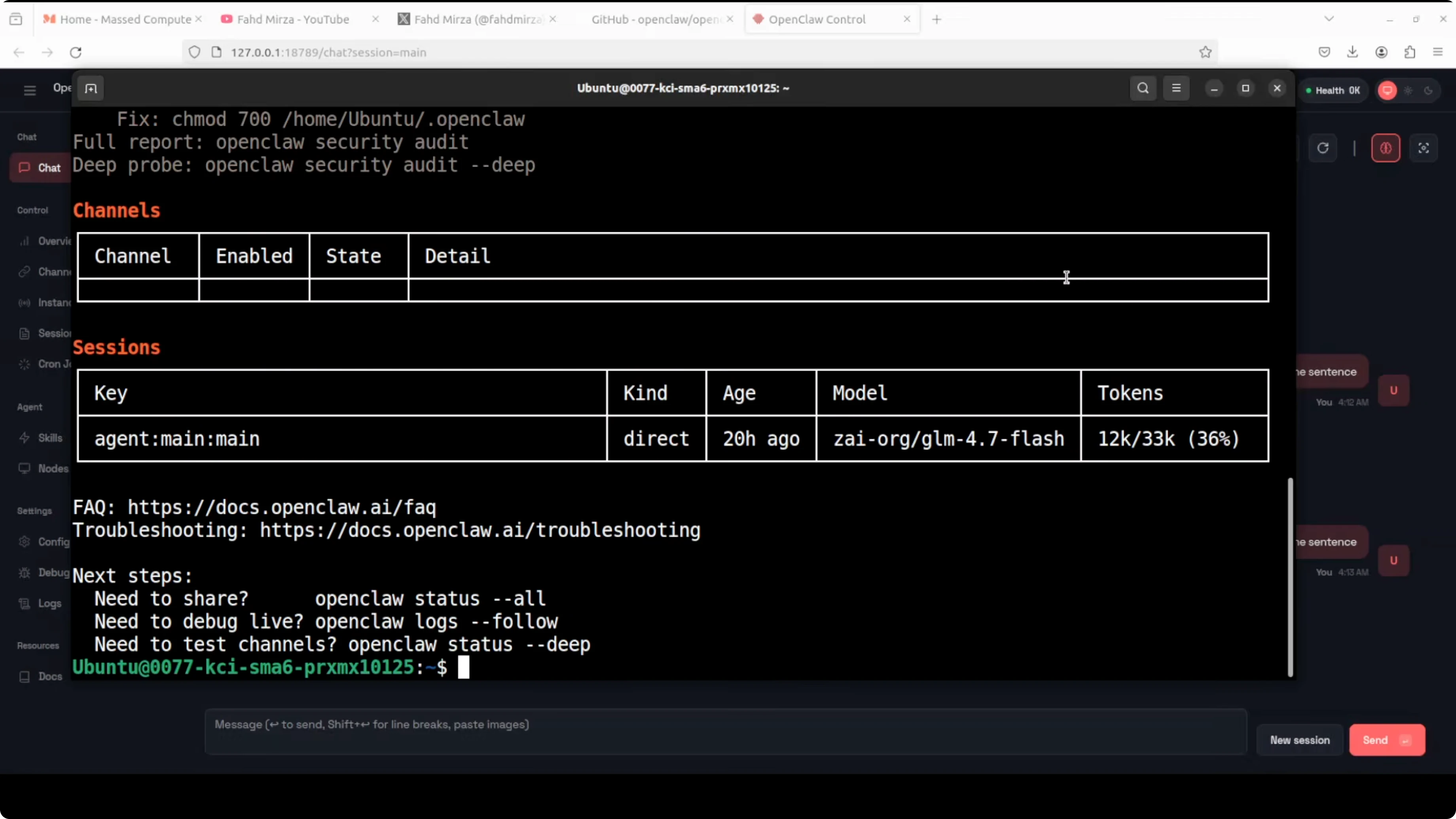
The experience is identical to Linux - same command, same prompts, same workflow.
Options for macOS
On macOS you can choose between several methods:
- Universal installer - the recommended method
- Node and npm globally - if you prefer managing it as an npm package
- PNPM - if you use this package manager
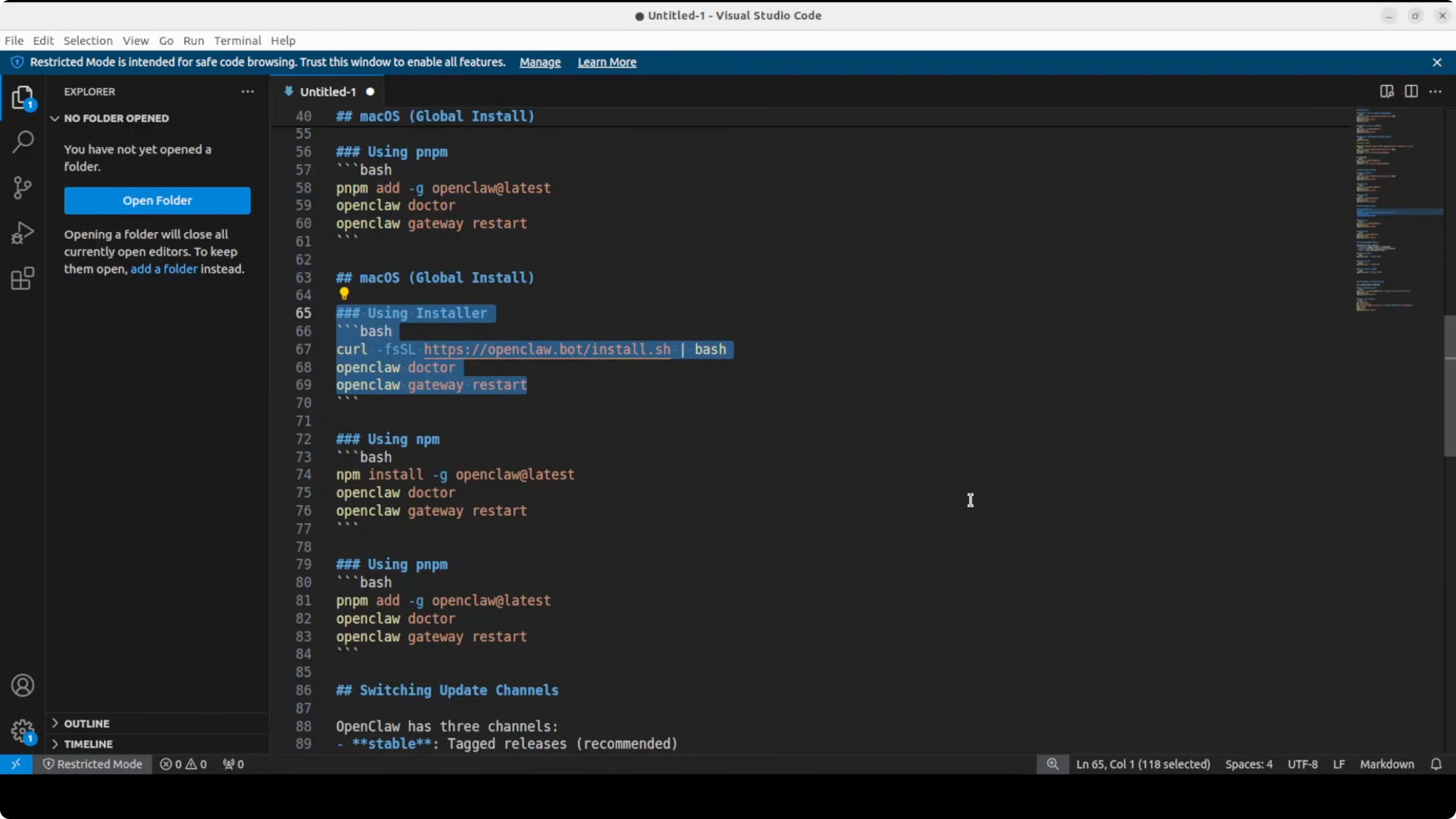
Commands are very similar across operating systems with slight variations.
Check Out My Projects
Take a look at what I'm building and the technologies I use.
Other Update Methods
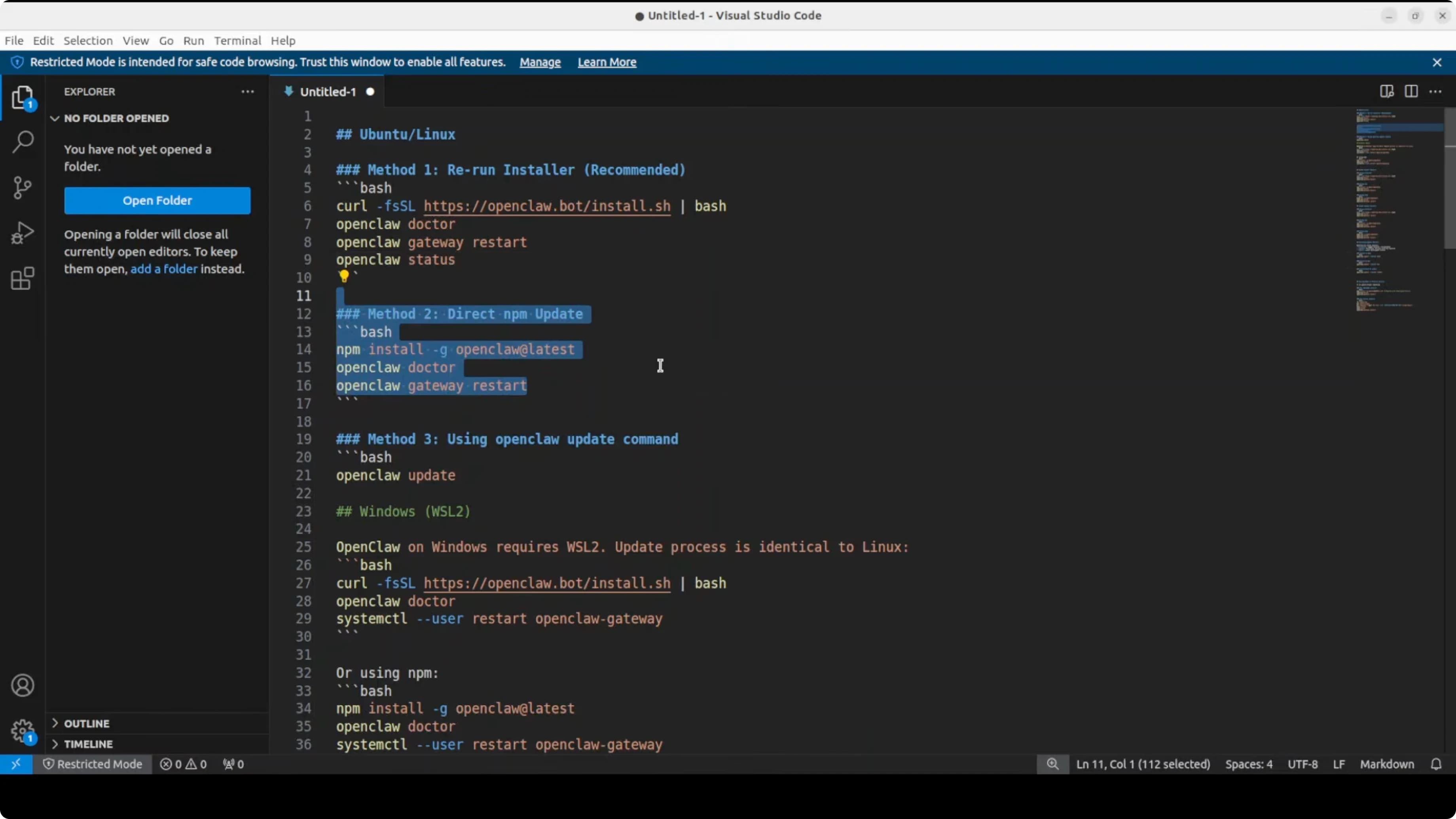
Updating via Global npm
If you installed OpenClaw as a global npm package:
npm install -g openclaw@latestThis method is simple and straightforward, perfect if you manage OpenClaw like any other Node dependency.
Docker Updates
If you're using Docker, the process involves:
docker stop openclaw
docker pull openclaw/openclaw:latest
docker run -d --name openclaw openclaw/openclaw:latest
Stop the current container, pull the latest image, and restart. Choose the method that best fits your CI/CD pipeline.
Channels: Stable, Beta, Dev
OpenClaw has three release channels:
- Stable: recommended for production or serious use cases
- Beta: new features in testing, relatively stable
- Dev: bleeding edge, for experimenting with the latest changes
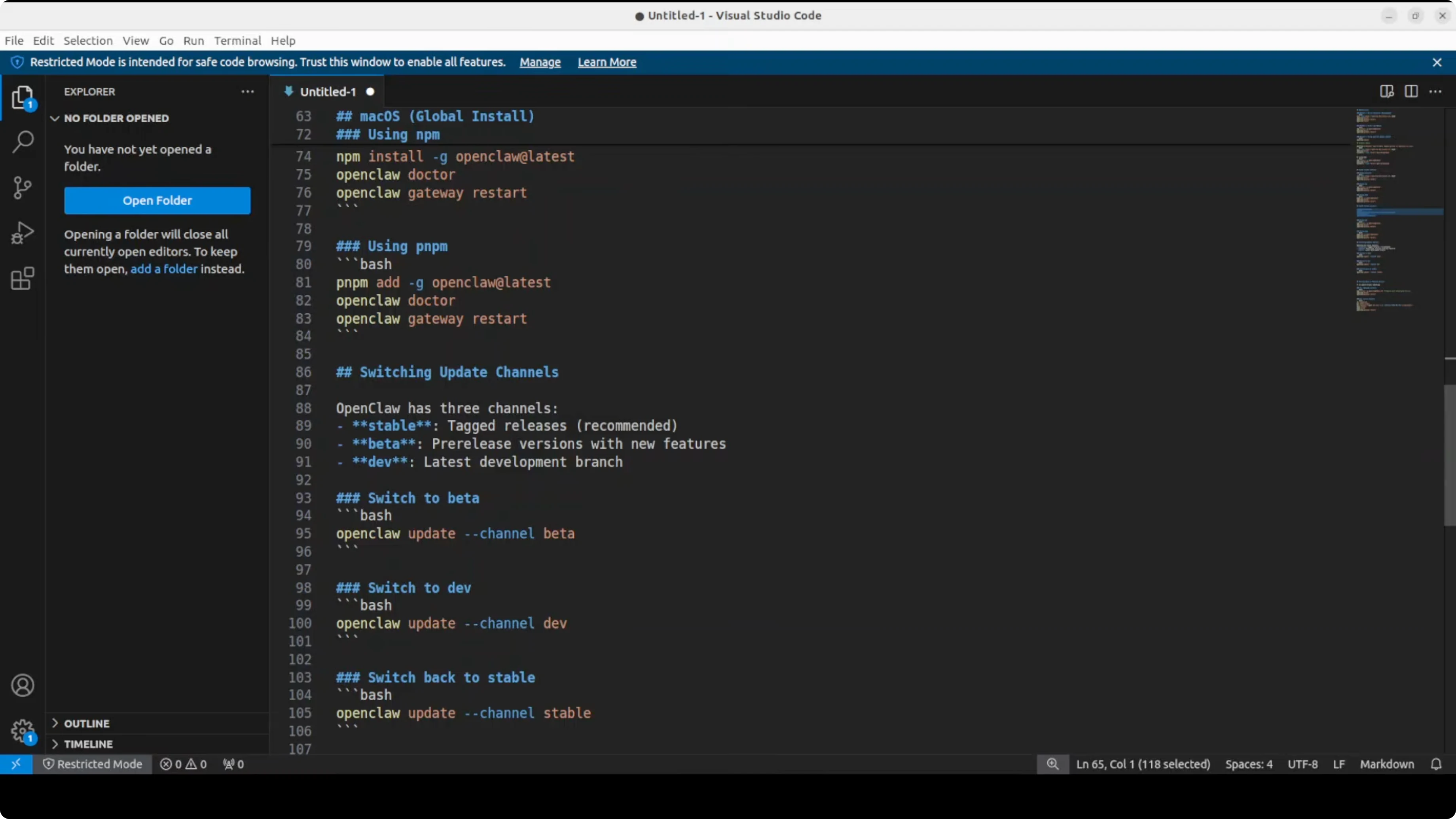
You can switch channels with:
openclaw update --channel betaTo preview what would happen without applying changes:
openclaw update --dry-runThis is useful for testing potentially risky upgrades before applying them.
Need OpenClaw Help?
I can help you set up, update, and manage your OpenClaw system.
Downgrade to a Previous Version
If something breaks after an update, you have two options to roll back.
Option 1: Downgrade with npm
If you installed with npm, you can specify an exact version:
npm install -g [email protected]This requires Node and npm installed.
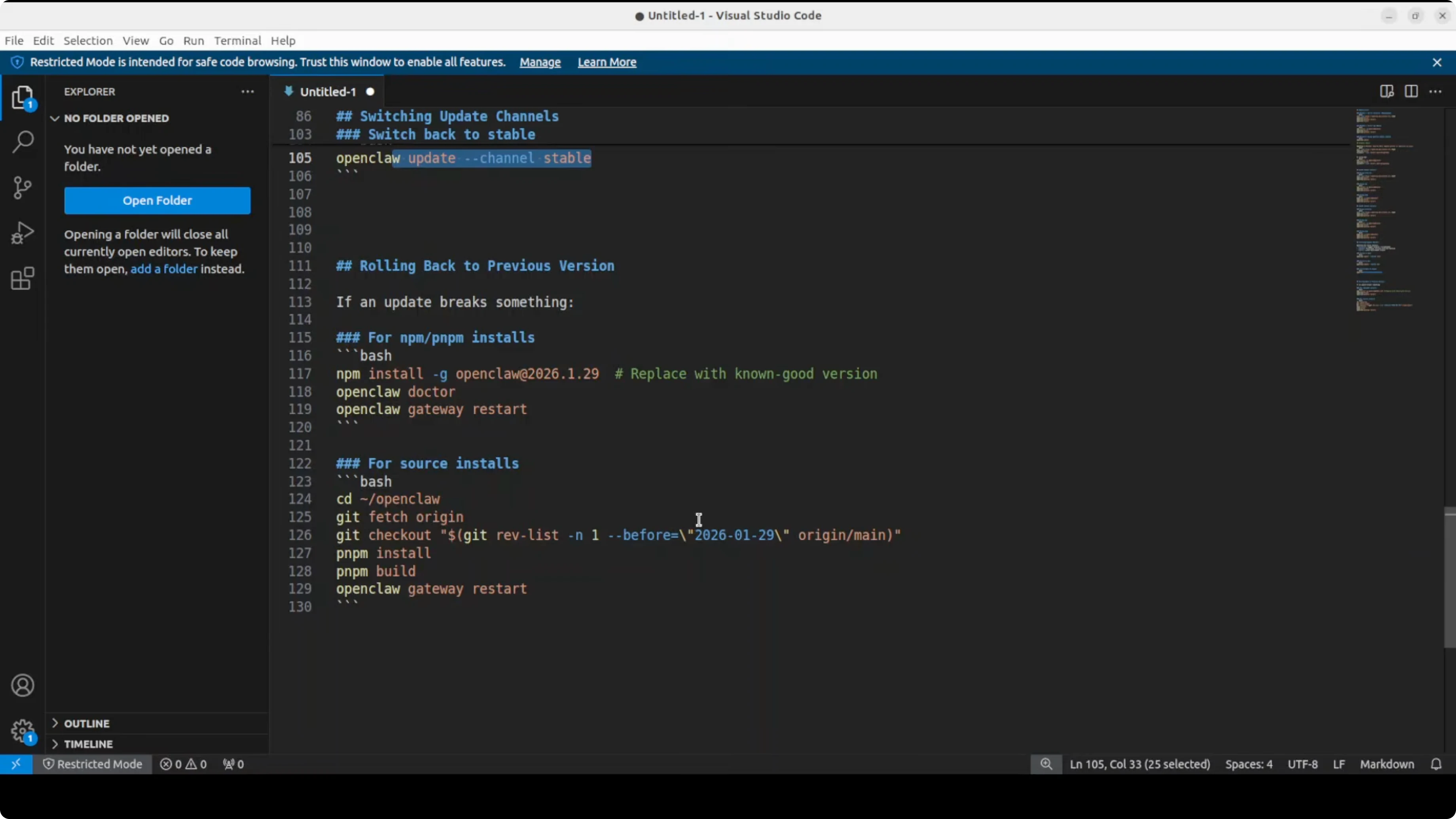
Option 2: Build from Source
For total control:
- Fetch from origin repository
- Checkout the version or branch you want
- Build with PNPM
This method is more complex but gives you maximum control over the exact version you're running.
Gateway Service and Doctor: Best Practices
The gateway is the core that manages OpenClaw's integrations with messaging services and external endpoints.
Fundamental rules:
- After any config changes, restart the gateway service
- If something isn't working, run the doctor
- The doctor handles migrations, flags deprecated settings, audits security, and verifies gateway configuration
openclaw gateway restart
openclaw doctor
These two commands solve 90% of post-update issues.
Summary: How to Update OpenClaw
For most users:
- Run
openclaw update - Choose yes to security prompts if you're in production
- Restart the gateway service with
openclaw gateway restart - Verify with
openclaw status
Recommended channels:
- Production → stable
- Testing and feature preview → beta
- Development and experimentation → dev
If something goes wrong:
- Run
openclaw doctorfor diagnostics - Consider a downgrade with npm or build from source
- Check gateway service logs
OpenClaw is a rapidly evolving project. Keeping it updated means you have access to the latest features, security fixes, and performance improvements. With this guide you have everything you need to safely manage upgrades and downgrades.


