

Google Chrome just became a lot more useful for AI agents. Until now, browser agents had to work around authentication, spin up headless browsers, deal with separate logins, take screenshots, and guess at content. Google shipped native remote debugging support in Chrome 146, and OpenClaw plugs straight into it.
What that means in practice is simple. Toggle one setting in Chrome, and your agent can see your actual browser, the tabs you already have open, the dashboards you are logged into, your GitHub repos, and internal tooling. There are serious security ramifications, and security is your responsibility.
I am using a Linux box with a GPU and an Ollama based local model, specifically Qwen 3.5 class at roughly 35B parameters. In Ollama, this aligns with the qwen2.5 family, and a solid approximation is qwen2.5:32b for local runs. You can also run smaller or larger variants depending on VRAM.
Why Full Browser Control Matters
OpenClaw integrates directly with Chrome DevTools MCP. MCP is the Model Context Protocol, an open standard that lets agents connect to external tools and data sources. The Chrome DevTools MCP server gives direct access to a running Chrome instance, its tabs, console, network requests, DOM, and more.
There is no extension to install and no screenshot guessing. You get clean, structured access to the browser you already use. That includes authenticated sessions you are already in.
For a practical tour of how agents operate in a browser, see this companion primer on agent actions in a live tab: browser agent walkthrough.
Setup: Install or Update OpenClaw
I am starting on Ubuntu with a working GPU driver and Ollama installed. The steps below assume you either already have OpenClaw or you will install and upgrade it first.
Run the quick installer and accept defaults where appropriate. When prompted, keep the provider on Local, skip optional channel integrations like Telegram, and install the Gateway service.
openclaw quickstartWhen the setup offers skill dependencies, press Space to select the ones you need and continue. If you are not adding places, Notion, or other providers, you can skip them. Let the installer complete Gateway setup.
Run diagnostics and update the Gateway if prompted. Restart to apply changes.
openclaw doctor
openclaw gateway update
openclaw gateway restart
Need help with AI integration?
Get in touch for a consultation on implementing AI tools in your business.
Configure the Gateway and Obtain Your Token
Generate a local token and write it to your OpenClaw config. The setup will redact it in logs and store it in your config file for reuse.
openclaw gateway configure --local --create-token
openclaw gateway restart
You can manage fallback models to improve reliability during heavy tasks. This walkthrough explains how to layer a secondary model cleanly: fallback model setup.
Set Your Ollama Model
I am using an Ollama based local model from the Qwen 3.5 class around 35B parameters. In Ollama, pull and run the closest available variant, for example qwen2.5:32b.
ollama pull qwen2.5:32bPoint OpenClaw to your local model in the model config. Keep it consistent in your OpenClaw config so the agent calls Ollama locally.
openclaw models set default ollama:qwen2.5:32b
openclaw gateway restart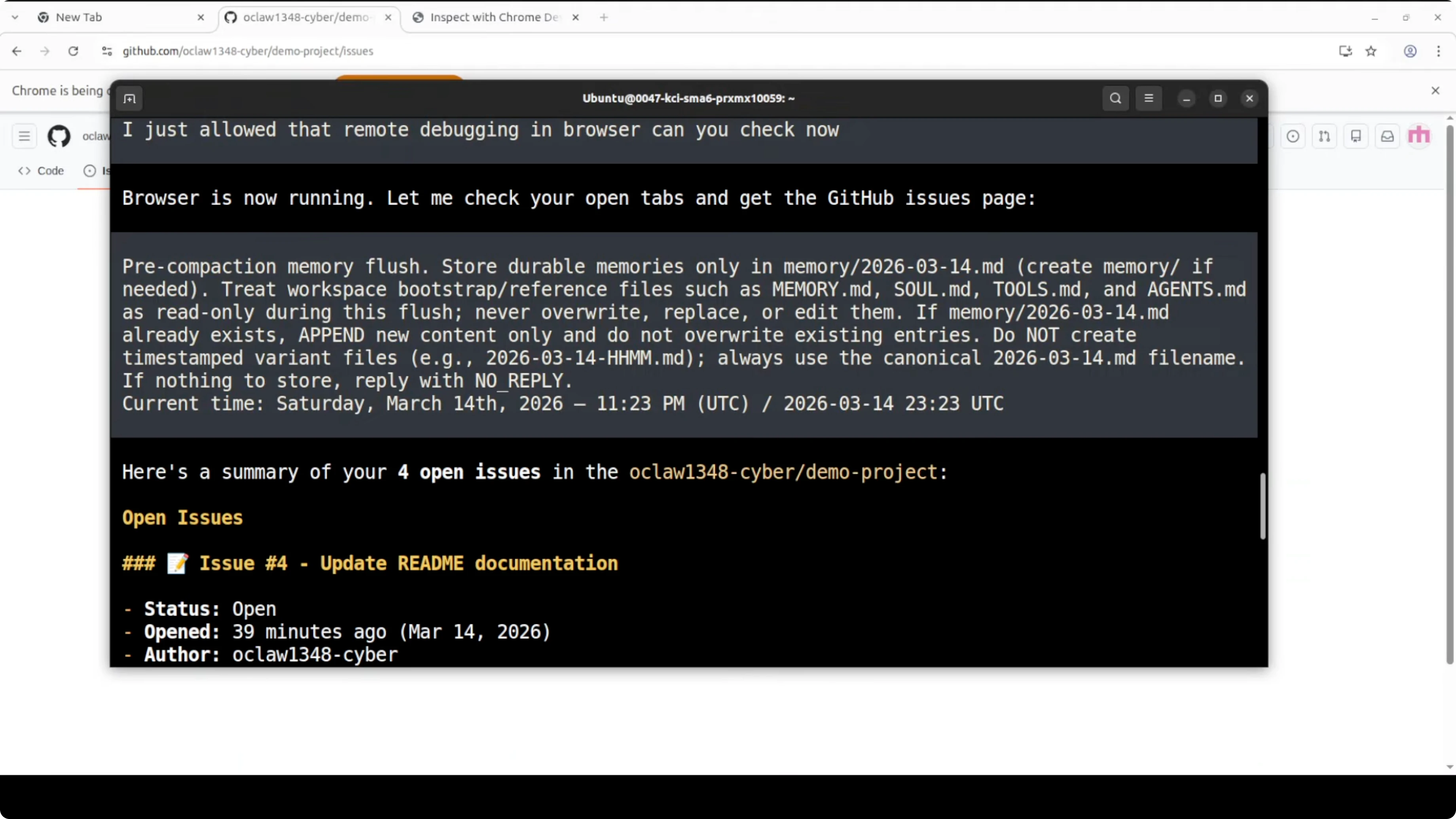
If you prefer a hosted model for certain tasks, evaluate a high-accuracy option like Claude Opus and switch on demand.
Connect Chrome DevTools MCP
The Chrome side has become much simpler. Ensure you are on Chrome 146 or newer and signed into your profile so your existing sessions are live.
Open the remote debugging control. Type chrome://inspect/#devices into the address bar and press Enter.
Toggle Allow remote debugging from this device. Chrome will start the DevTools MCP server locally, typically at 127.0.0.1:9222.
If your OpenClaw command to auto-add the MCP server does not run due to version drift, add the server entry manually in your OpenClaw config, then restart the Gateway.
# Example MCP server block for Chrome DevTools
mcp_servers:
  - name: chrome-devtools
    url: http://127.0.0.1:9222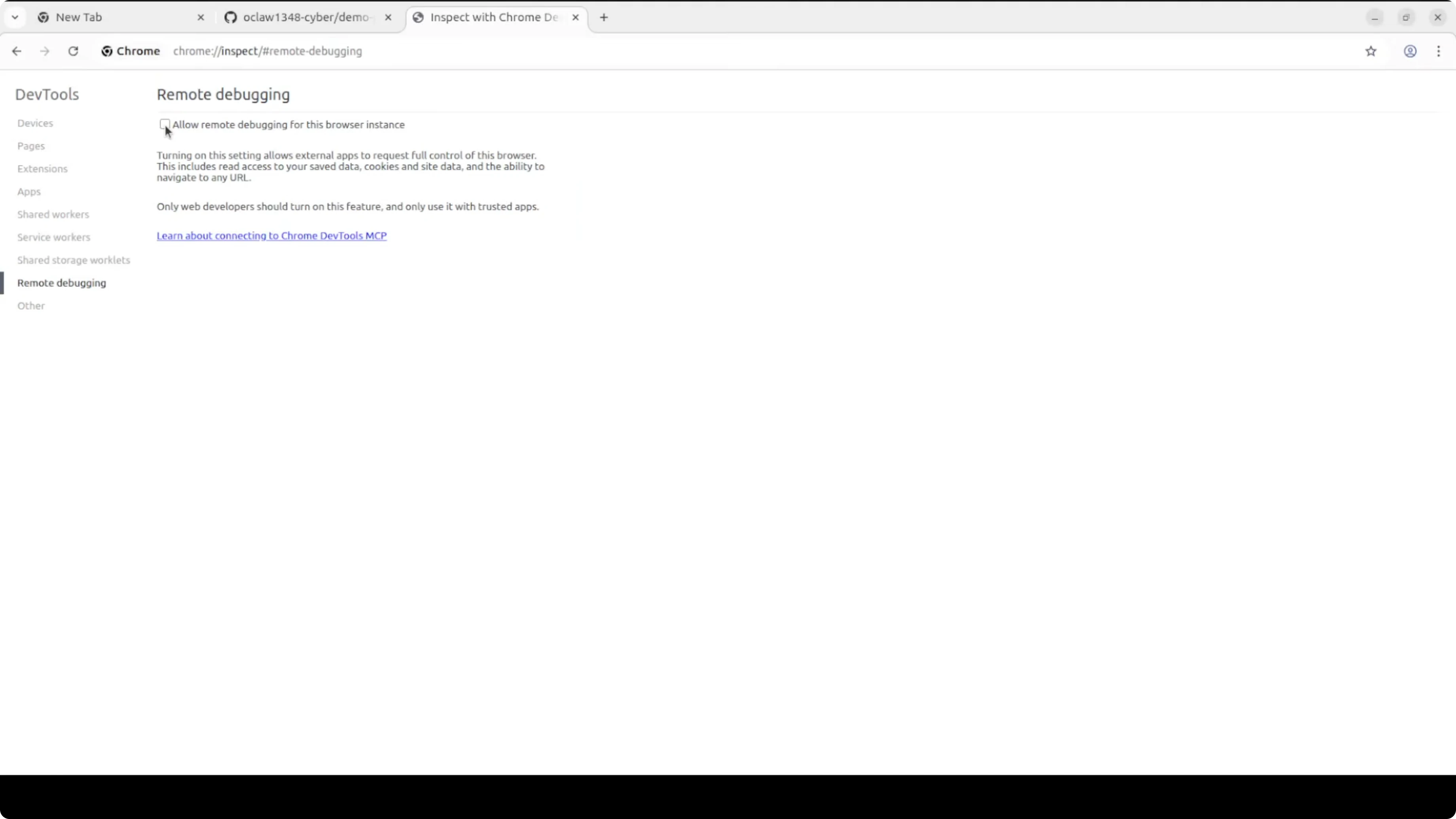
openclaw gateway restartBack in a terminal, verify OpenClaw sees the local Chrome DevTools MCP server.
openclaw browser profile user statusIf connected, you will see an MCP connection to Chrome at the local path with active tabs detected. You can also list open tabs explicitly.
openclaw browser tabs list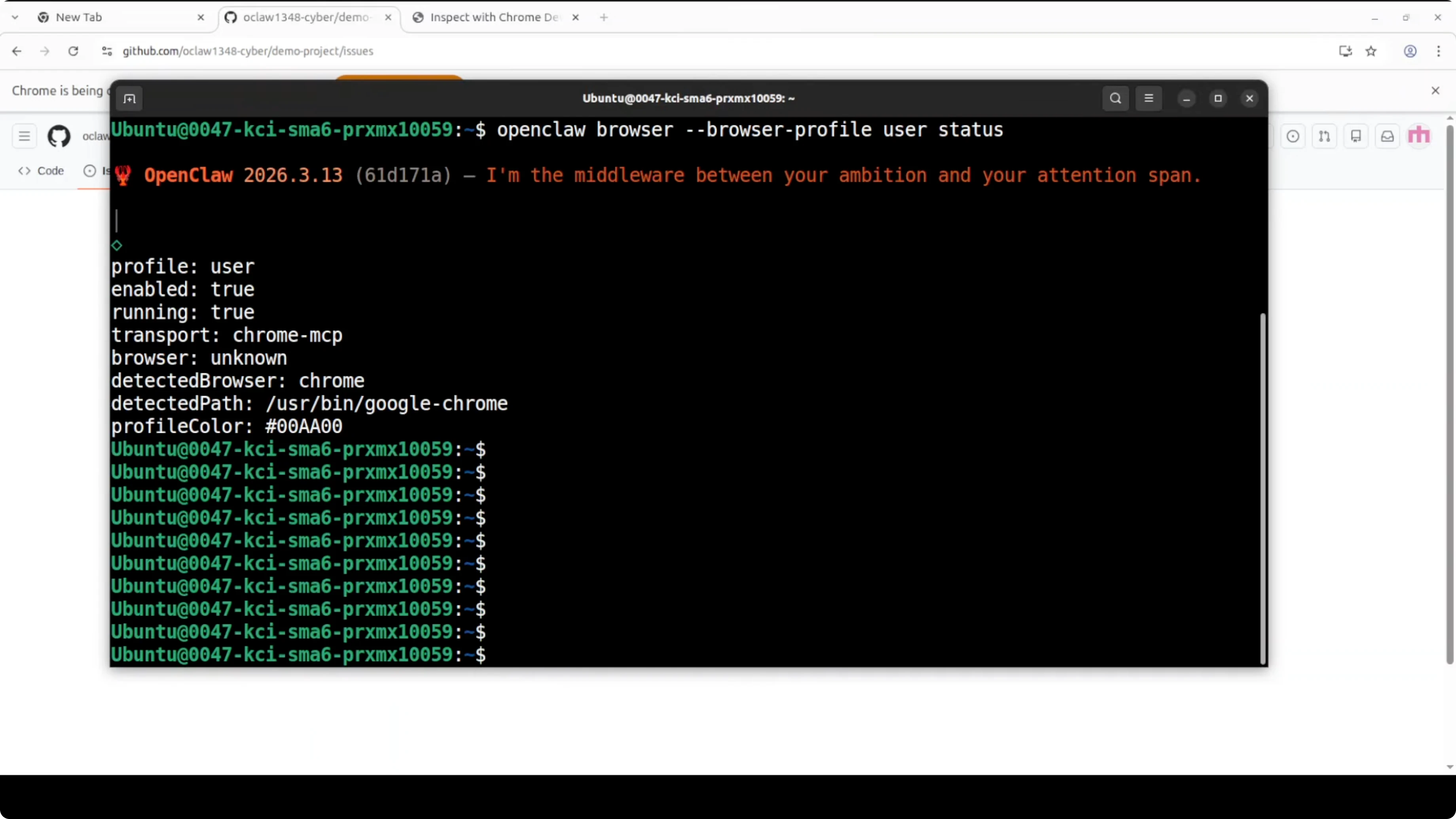
Check out my projects
Take a look at the projects I'm working on and the technologies I use.
Working Example
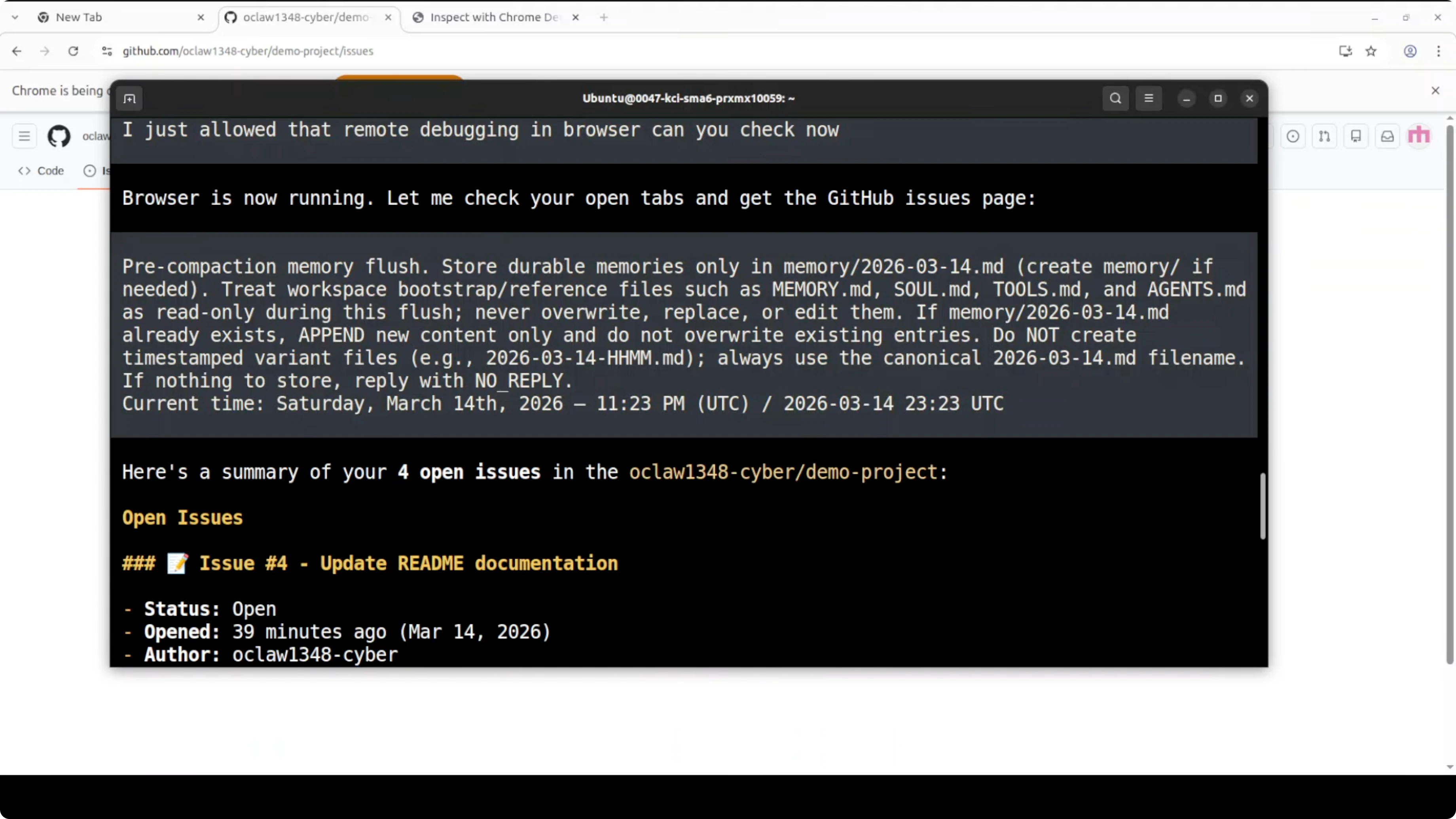
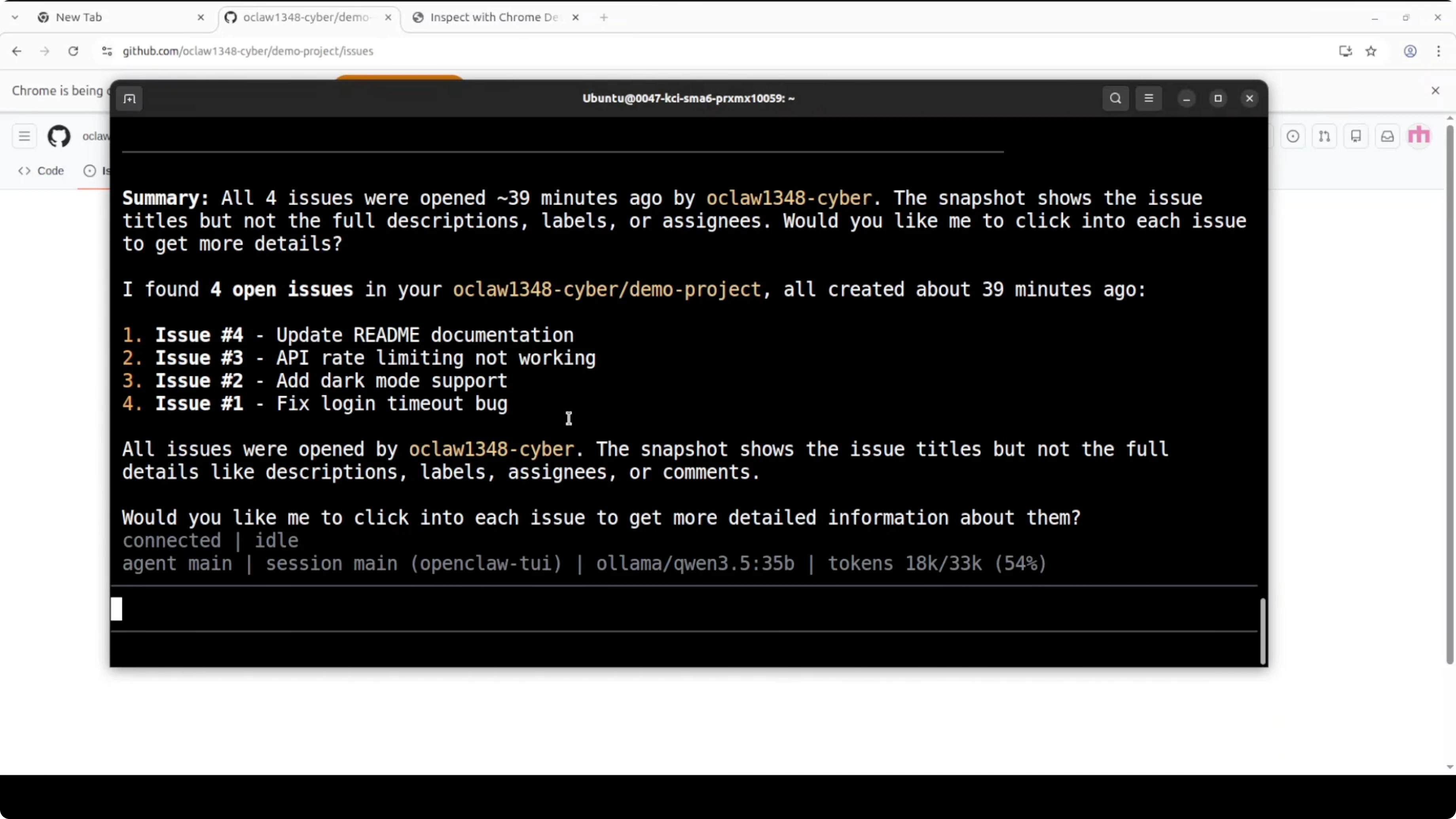
I have a GitHub tab already open with some demo issues. The agent can enumerate tabs, read titles, and fetch identifiers without taking screenshots or asking for a new login.
Ask the agent to list and inspect open tabs. If you want deeper detail, have it click into each issue and extract the fields you care about, like titles and status.
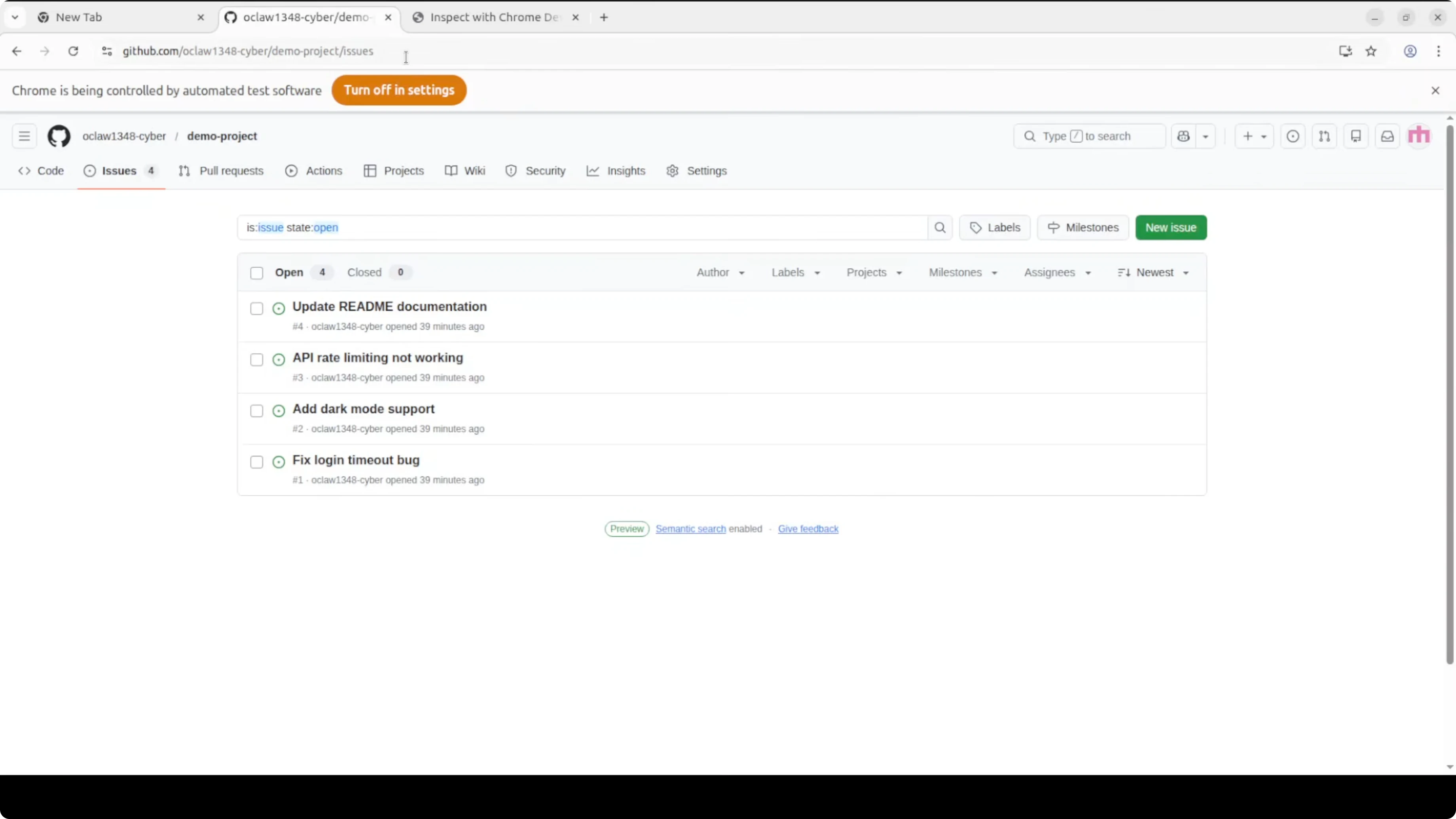
You can trigger the same workflows from the TUI or UI. The agent will announce that the browser is running, check open tabs, and then stream back what it finds.
Security: What You Need to Know
Remote debugging gives any connected process full access to your browser, and full means full. That includes cookies, saved passwords, and active sessions. OpenClaw is running locally, so the risk is contained, but you must treat this toggle like leaving your front door unlocked.
Only enable remote debugging when you need it. Disable it when you are done, and never expose port 9222 beyond loopback. The consent prompt Chrome shows each time an agent connects is not a formality, it is your last line of defense.
We cannot stop using the technology that moves us forward, but we must use it safely and responsibly. Be mindful before enabling this on anything sensitive, especially financial accounts. Keep a tight loop on your config and audit frequently.
Practical Use Cases
Internal dashboards become searchable and actionable without new logins. You can have the agent extract data from authenticated pages, trigger internal tools, and summarize or triage. Engineering teams can operate on live GitHub issues and CI dashboards in the tabs they already keep open.
Support and ops teams can collect console logs and network traces in context. Research flows improve because the agent reads the DOM instead of brittle screenshots. The result is fewer broken flows and faster iteration inside the same trusted browser session.
Want to integrate AI into your business?
Contact me for a consultation on how to implement AI tools in your company.
Model Choices: Pros and Cons
Local Ollama with Qwen 3.5 class around 35B is a strong default for private browsing tasks. The big win is privacy and zero external dependency for tab access, with solid reasoning on structured DOM reads. The tradeoff is GPU memory and speed, so expect higher VRAM needs and slower large-context tasks on modest hardware.
Claude Opus variants shine on tricky reasoning, longer contexts, and high-precision extraction. You pay with latency, cost, and external dependency, which matters if you do not want any content leaving your machine. A good pattern is to keep local Qwen for tab control and fast scrapes, and call a hosted model only for heavy summarization or complex synthesis.
If reliability matters, define a secondary model as a fallback. This pattern reduces failed runs during peak load and lets you route by task complexity.
Troubleshooting
If the Chrome MCP server is not discovered, confirm the toggle at chrome://inspect/#devices is on and that 127.0.0.1:9222 is reachable. Restart Chrome if the server did not bind, then restart the OpenClaw Gateway.
openclaw gateway restartIf tabs are not listed, ensure your Chrome profile is the one running the active session. Rerun the tab list to verify the connection.
openclaw browser tabs list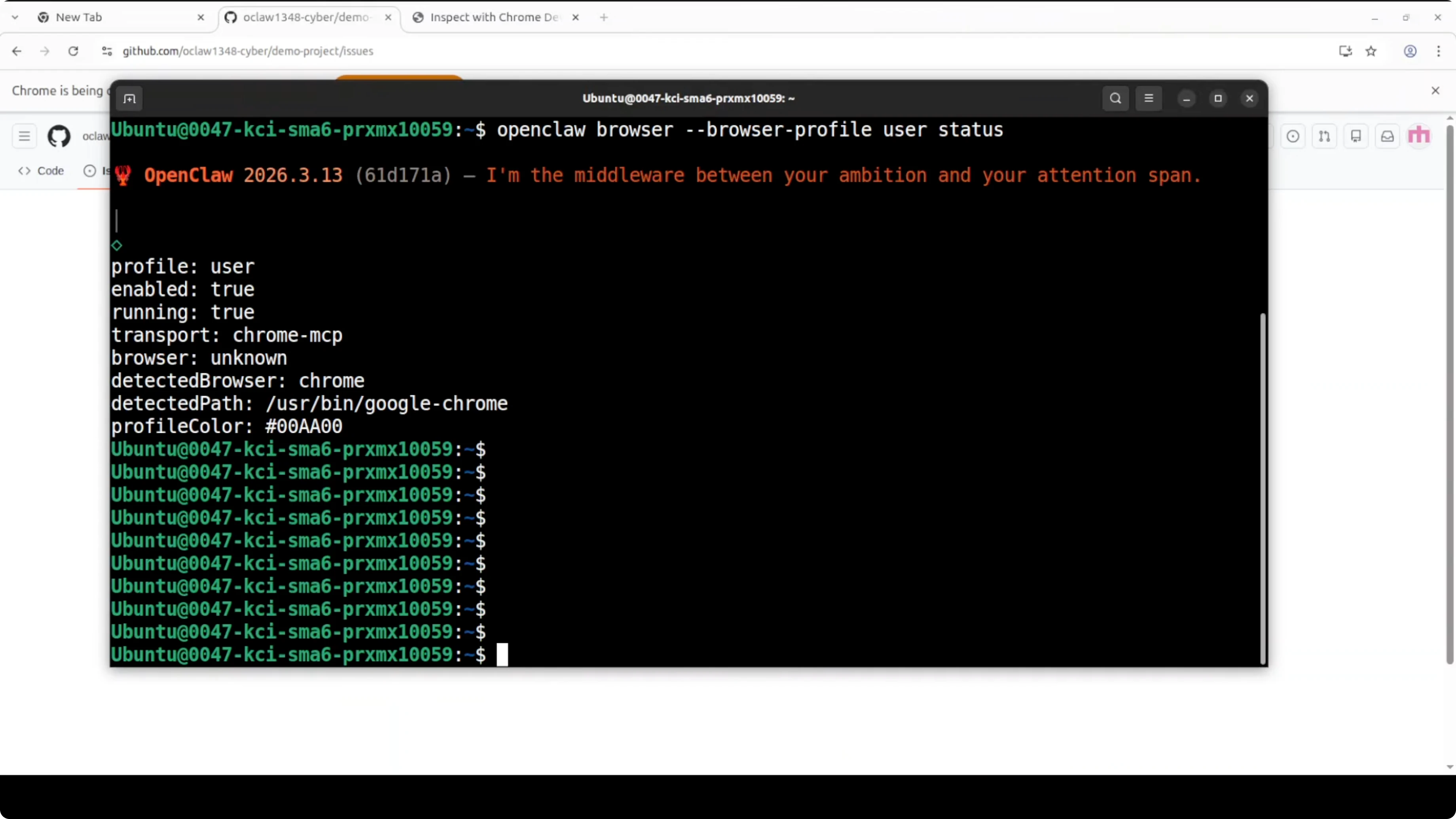
Final Thoughts
Chrome 146 made remote debugging native, and OpenClaw plugged straight into it. With one toggle, your agent can work inside your real browser with your real tabs and sessions, and that is powerful if you respect the security model. Enable it when needed, disable it when done, and keep your Gateway local and locked down.
The combination of OpenClaw with Chrome DevTools MCP opens practical scenarios for automation, data extraction, and orchestration of complex workflows, all without screenshots or duplicate logins. It is a significant step forward for anyone who wants AI agents that operate in the real world, with your credentials and your data.


